Click Print in Odoo. It comes out of your printer.
Delivery slips, invoices, shipping labels and attachments go straight to the printers in your office and warehouse. No PDF to download, no IoT box, no cloud print service and nothing to pay per print.
Runs on Odoo Community and Enterprise, on Odoo.sh or your own server.
Printing from Odoo, without the detour
No downloads, no extra hardware, no print service in between.
Printing from Odoo, without the detour
No more download and print
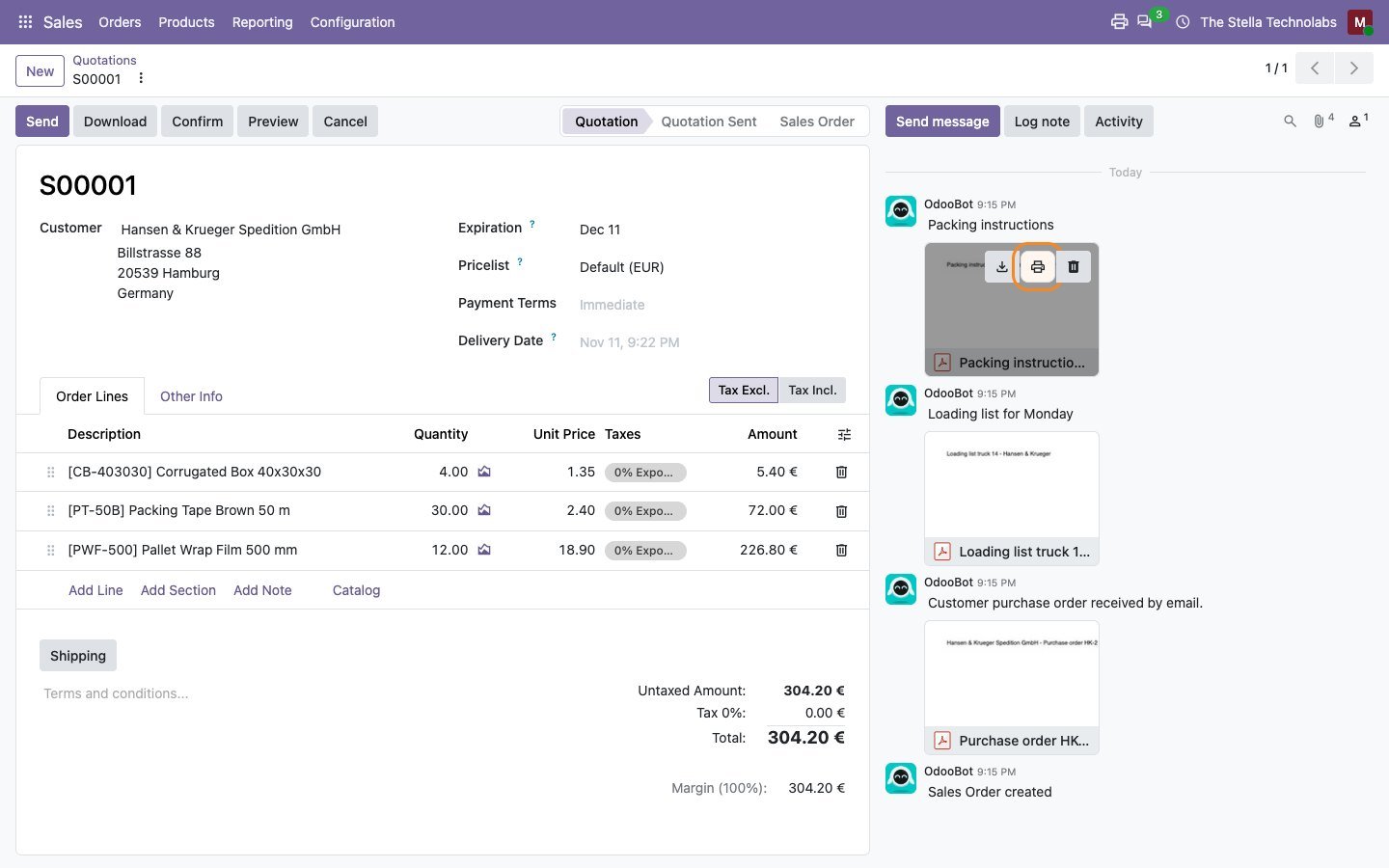
Every Print menu entry sends the document to the right printer at once. Download is still one click away when someone needs the file.
No IoT box, no subscription
A small Stella agent runs on any Windows, Mac or Linux computer next to the printers. Network printers need no agent at all.
Your documents stay yours
Jobs travel from your Odoo to your computer or printer only. There is no outside print service to sign up for or to pay.
Everything Odoo prints, on the printer it belongs to
What it does, from the first click to the last label.
Print menu goes to the printer
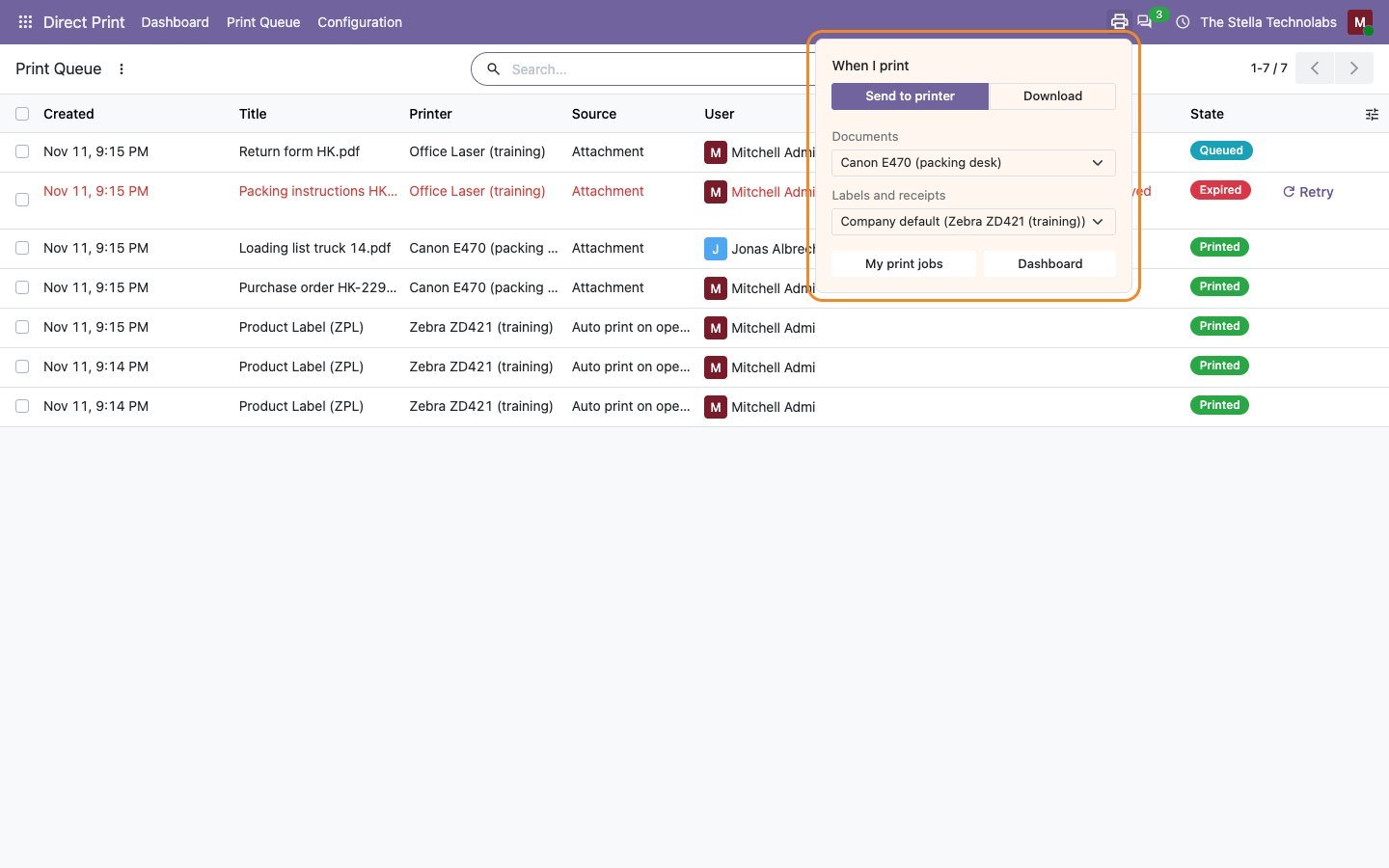
Every Print entry in Odoo sends the document to your printer instead of downloading a PDF, with Download instead one click away.
Odoo auto print, for real
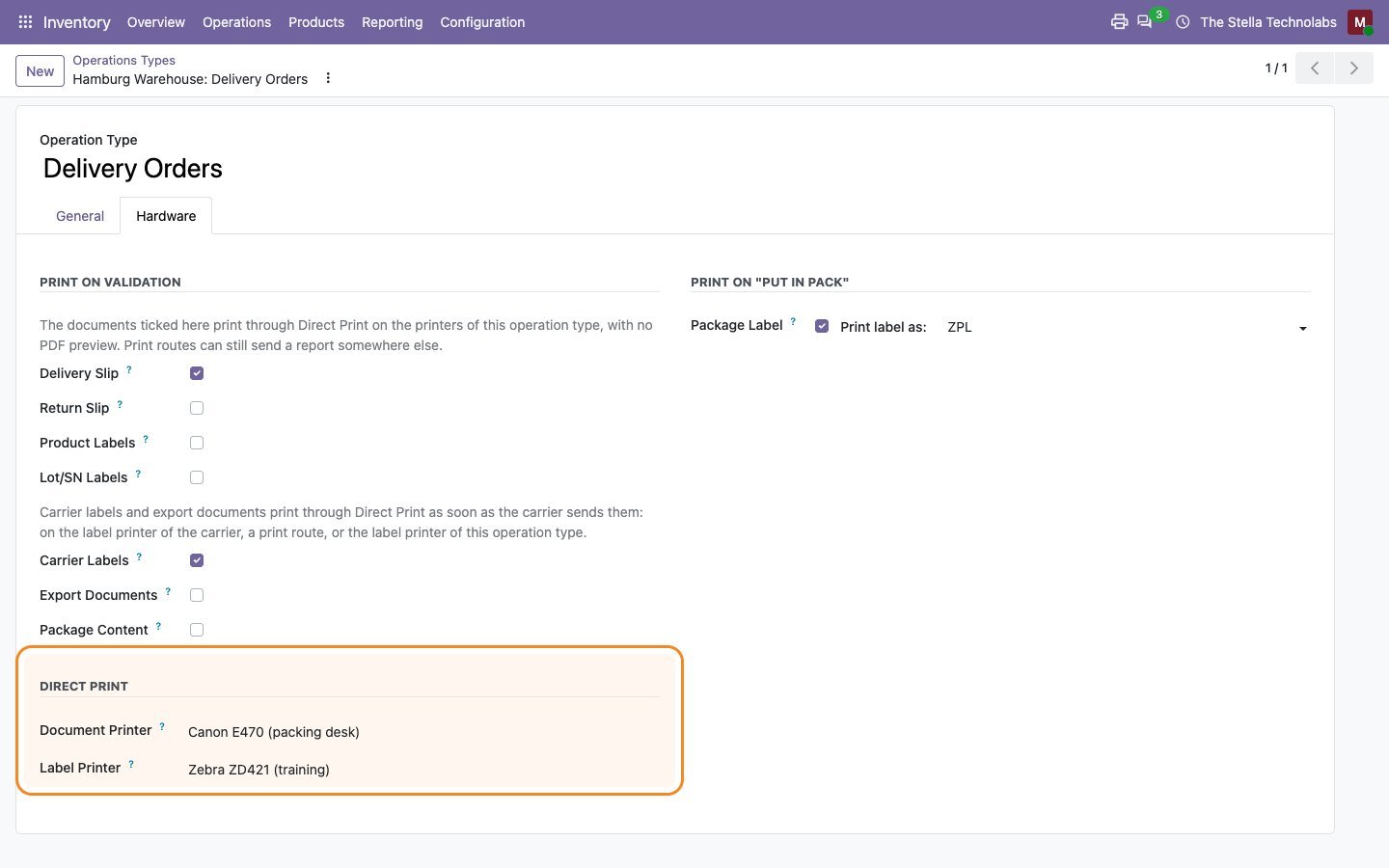
The auto print boxes Odoo already has on each operation type, such as delivery slip, product and lot labels and packages, print on the real printer when a transfer is validated.
Shipping labels on validation
Carrier labels print as soon as the carrier sends them, PDF or ZPL, for any carrier that attaches its label to the delivery.
ZPL labels for thermal printers
Product, lot and package labels in ZPL go to Zebra and other label printers as raw data, sharp and at full speed.
The right printer every time
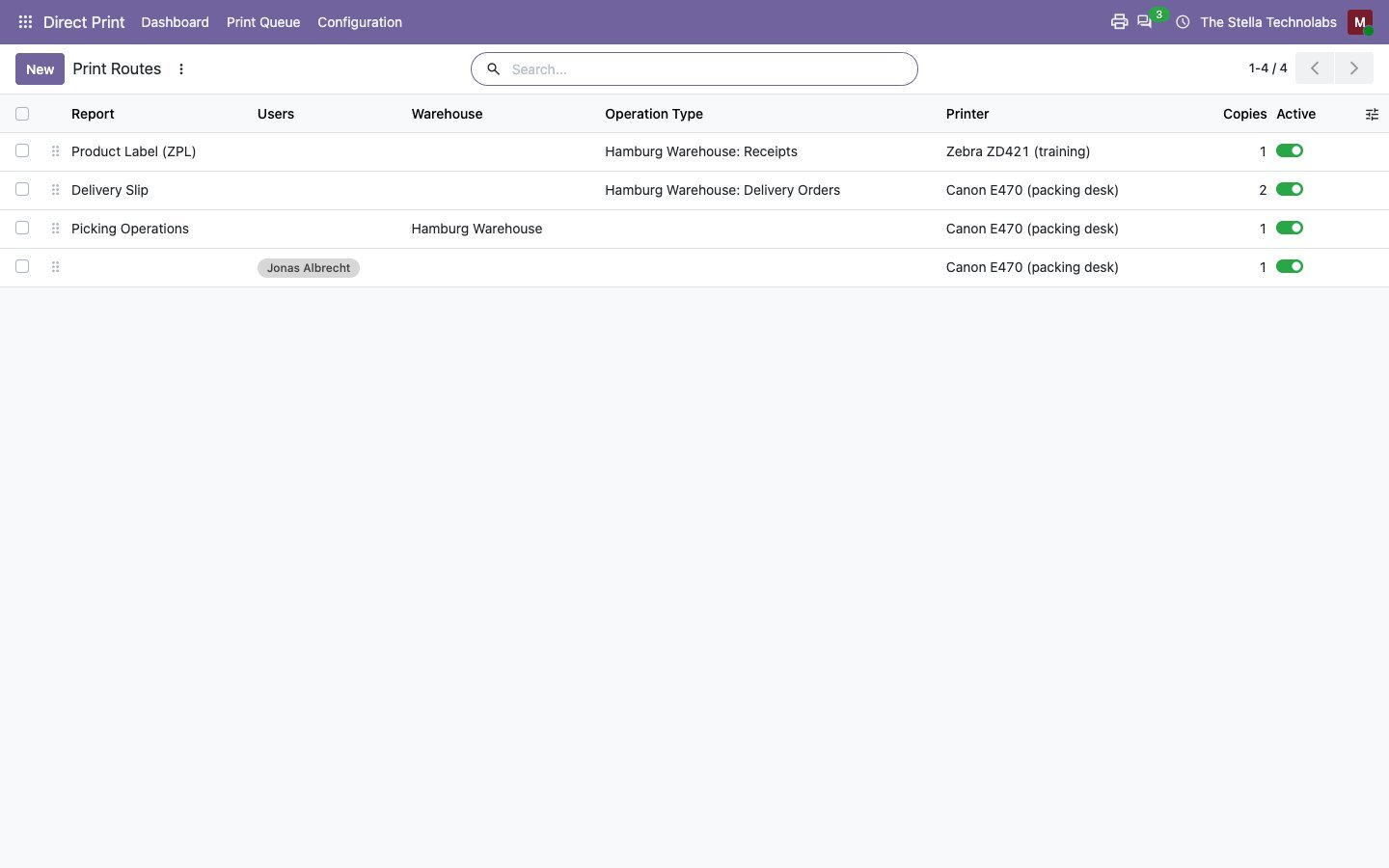
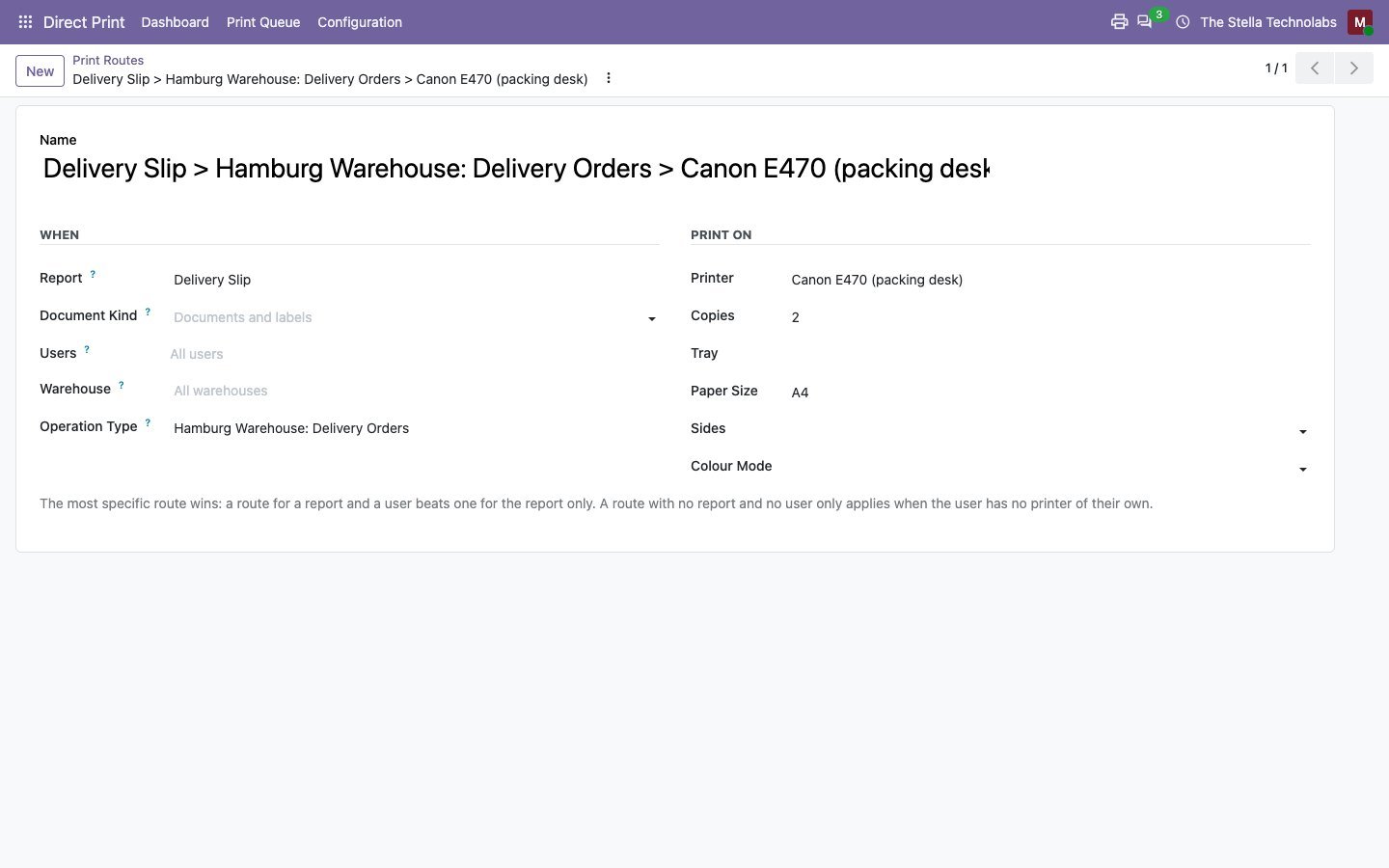
Print routes by report, user, operation type, warehouse and company, plus a document and a label printer per user and per operation type.
Print from Automation Rules
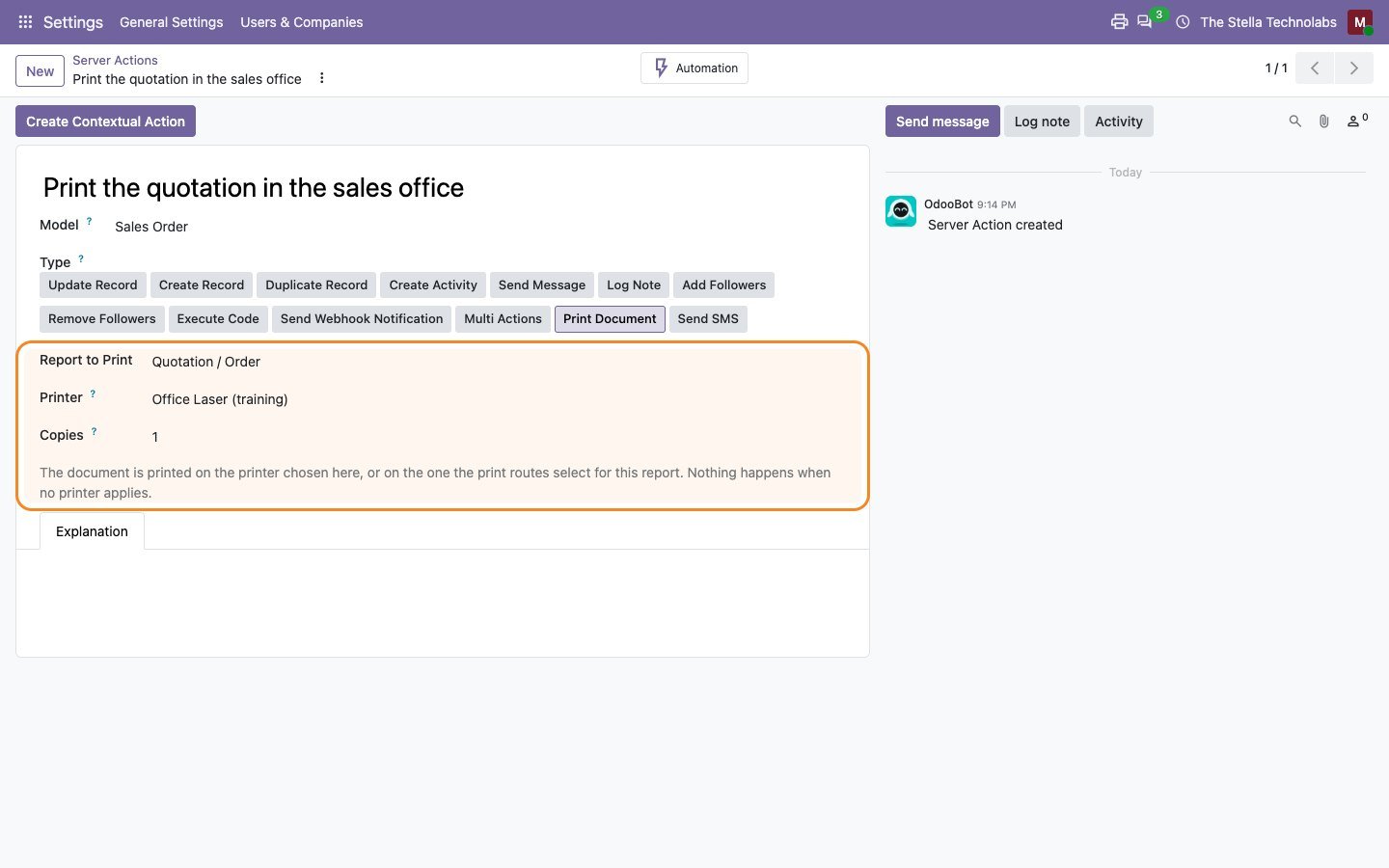
A Print Document action for Odoo Automation Rules: print an invoice when it is posted or an order when it is confirmed, on any model.
A small agent, nothing compiled
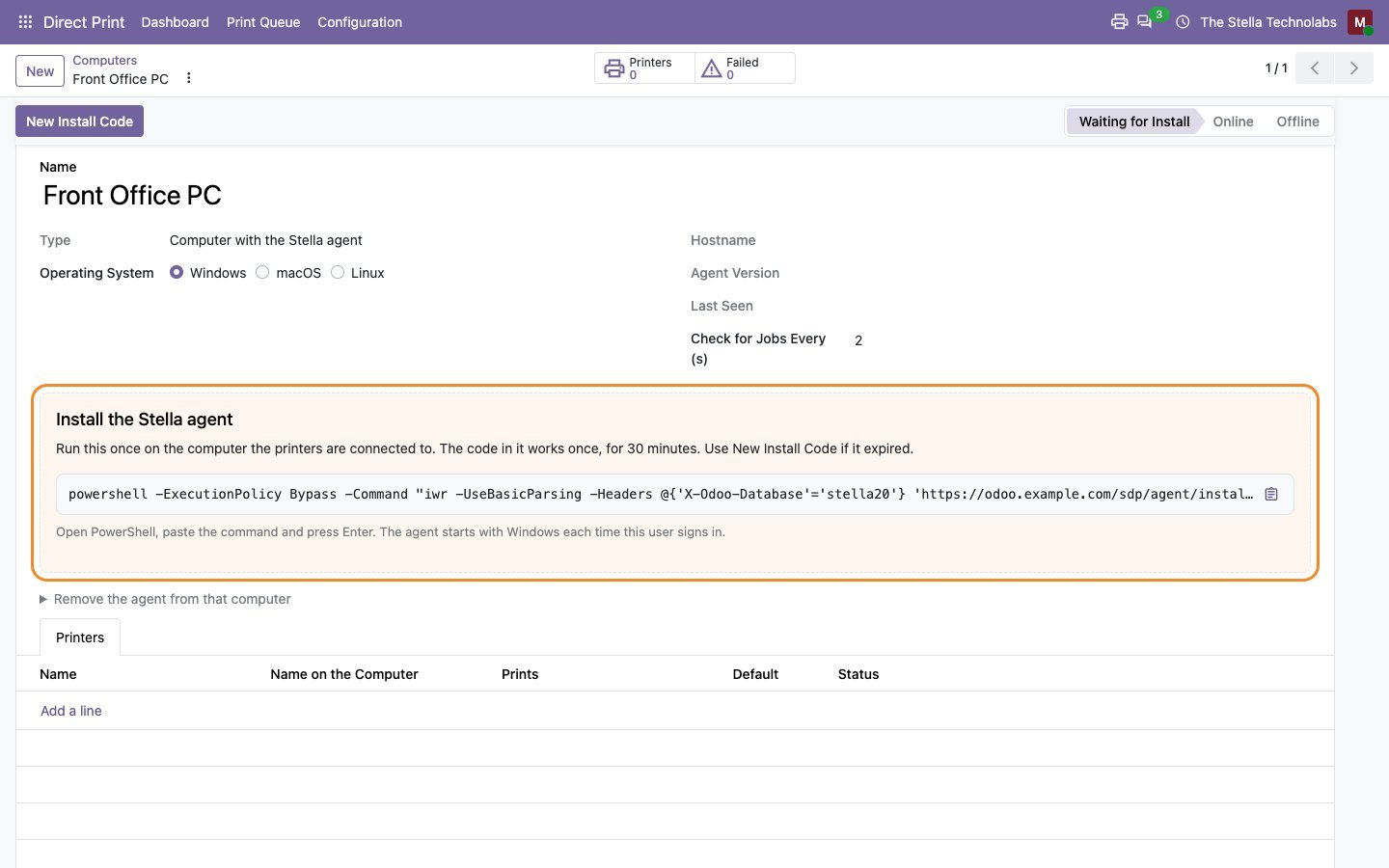
One command installs the Stella agent: a readable script that uses what Windows, macOS and Linux already have, connecting out to Odoo.
Network printers with no agent
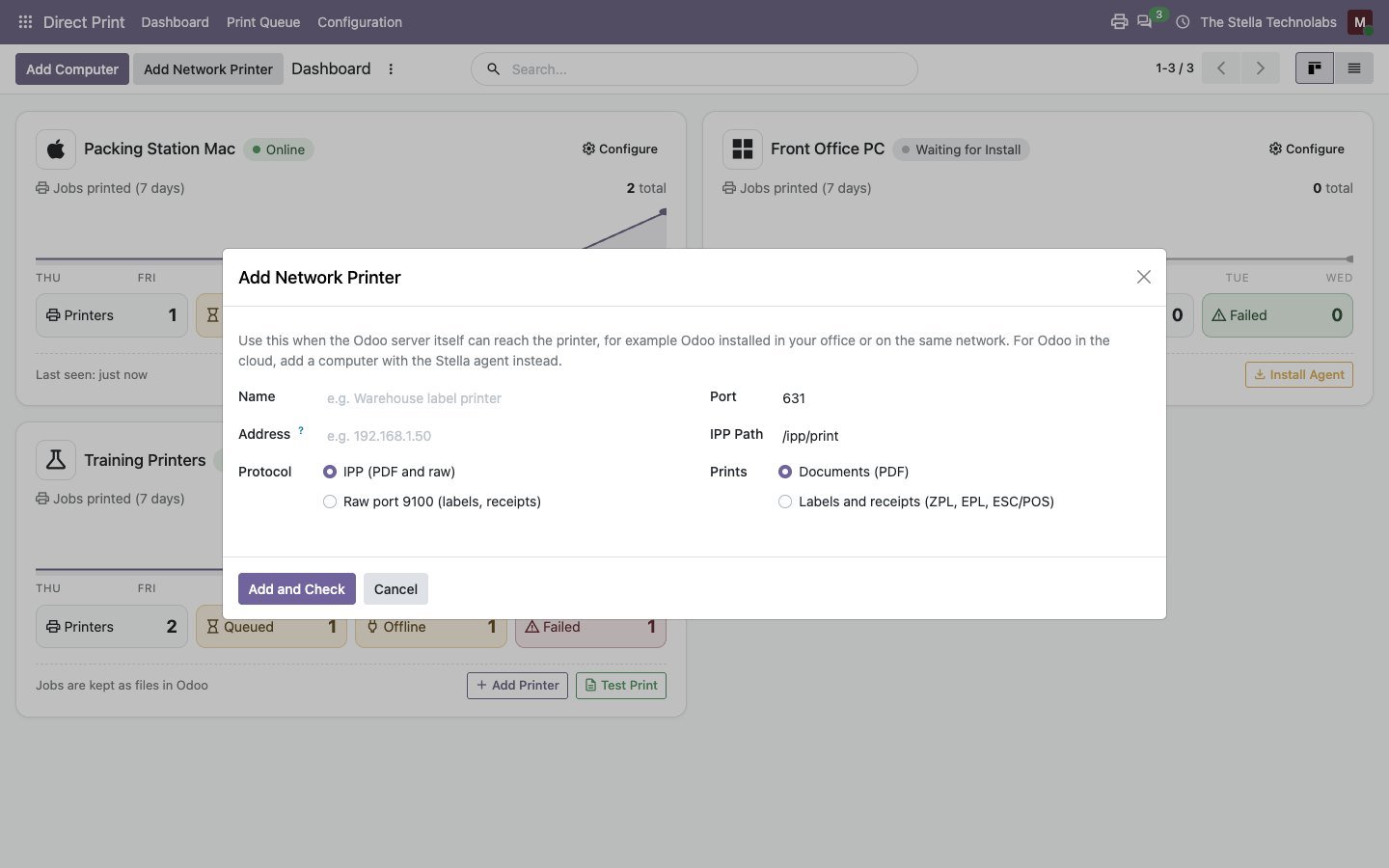
When the Odoo server can reach a printer, it prints over IPP or port 9100 directly and checks what the printer accepts.
Copies, trays, paper and two sided
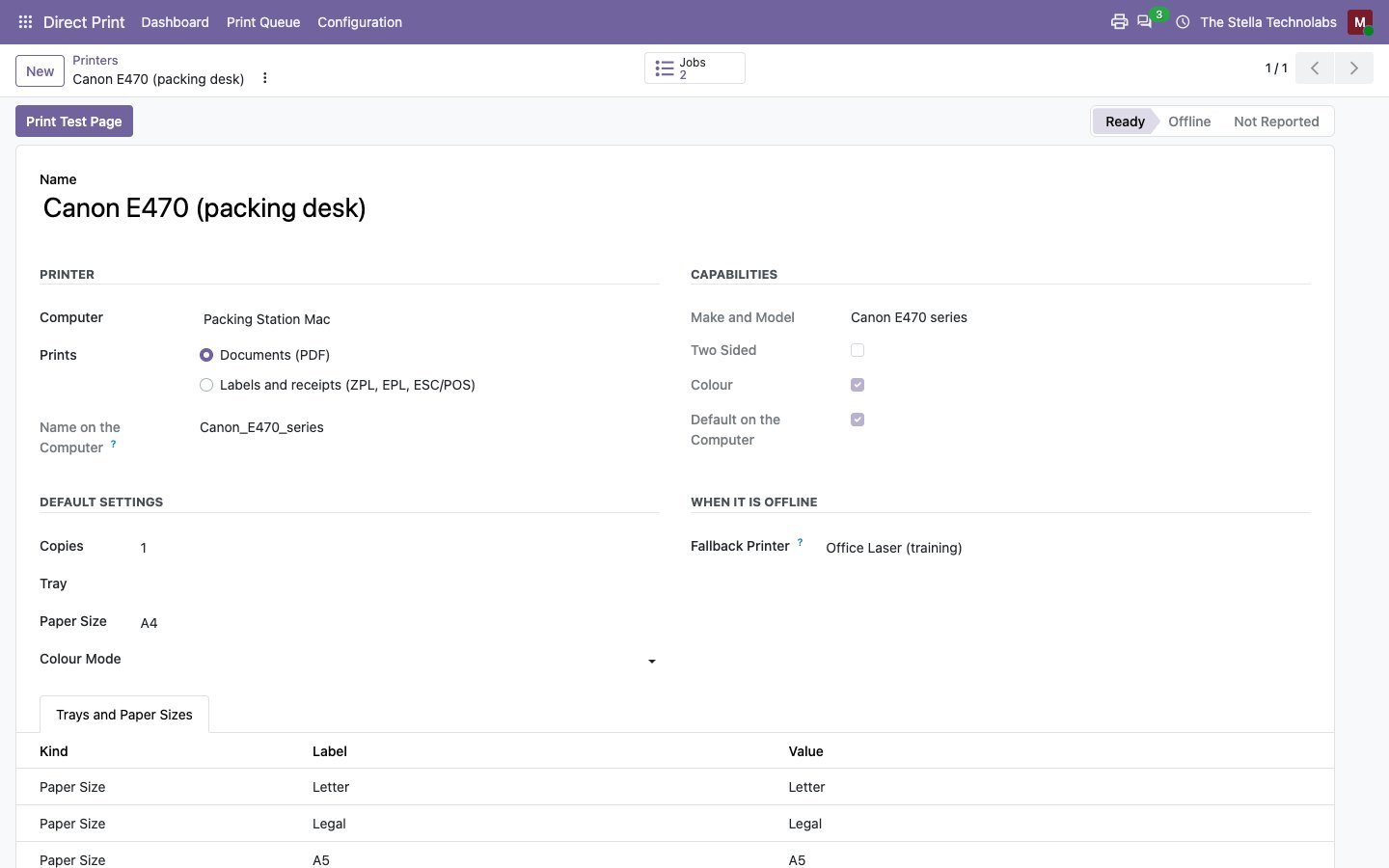
Options are chosen from what each printer reports, per printer and per route.
Printed once, never twice
A job is released only when Odoo saves the transaction and goes to one computer only, so a double click never prints twice.
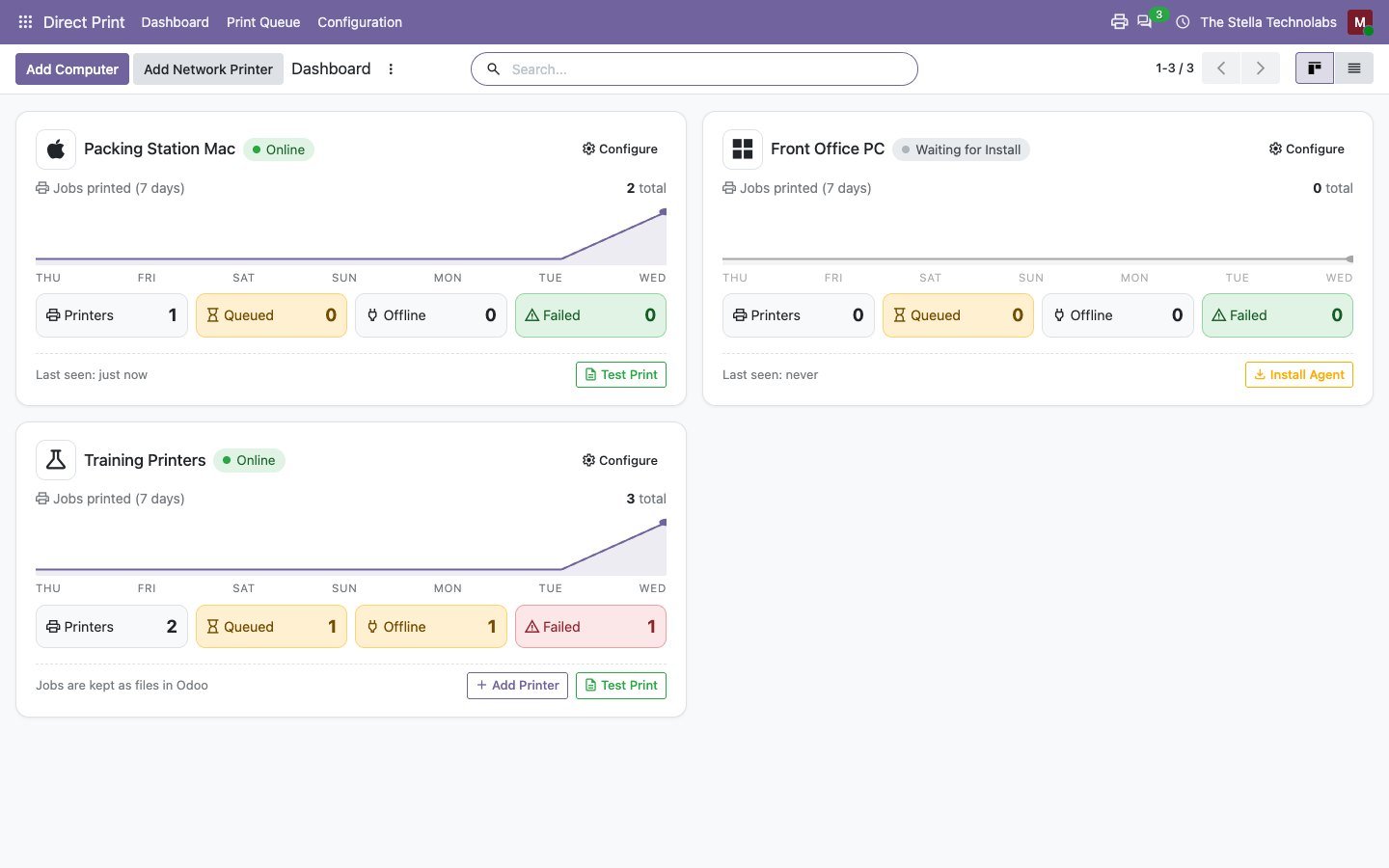
Print queue with status
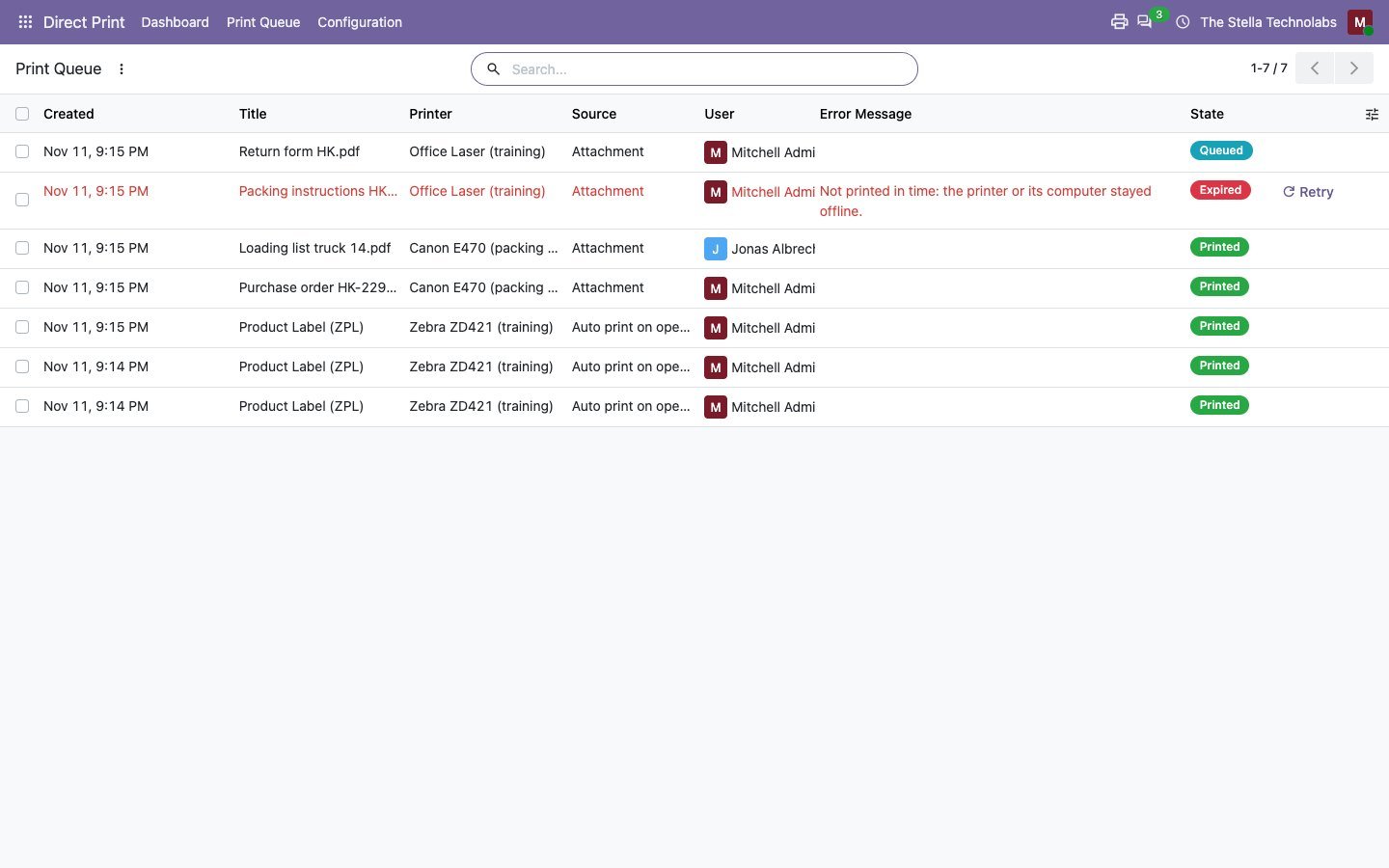
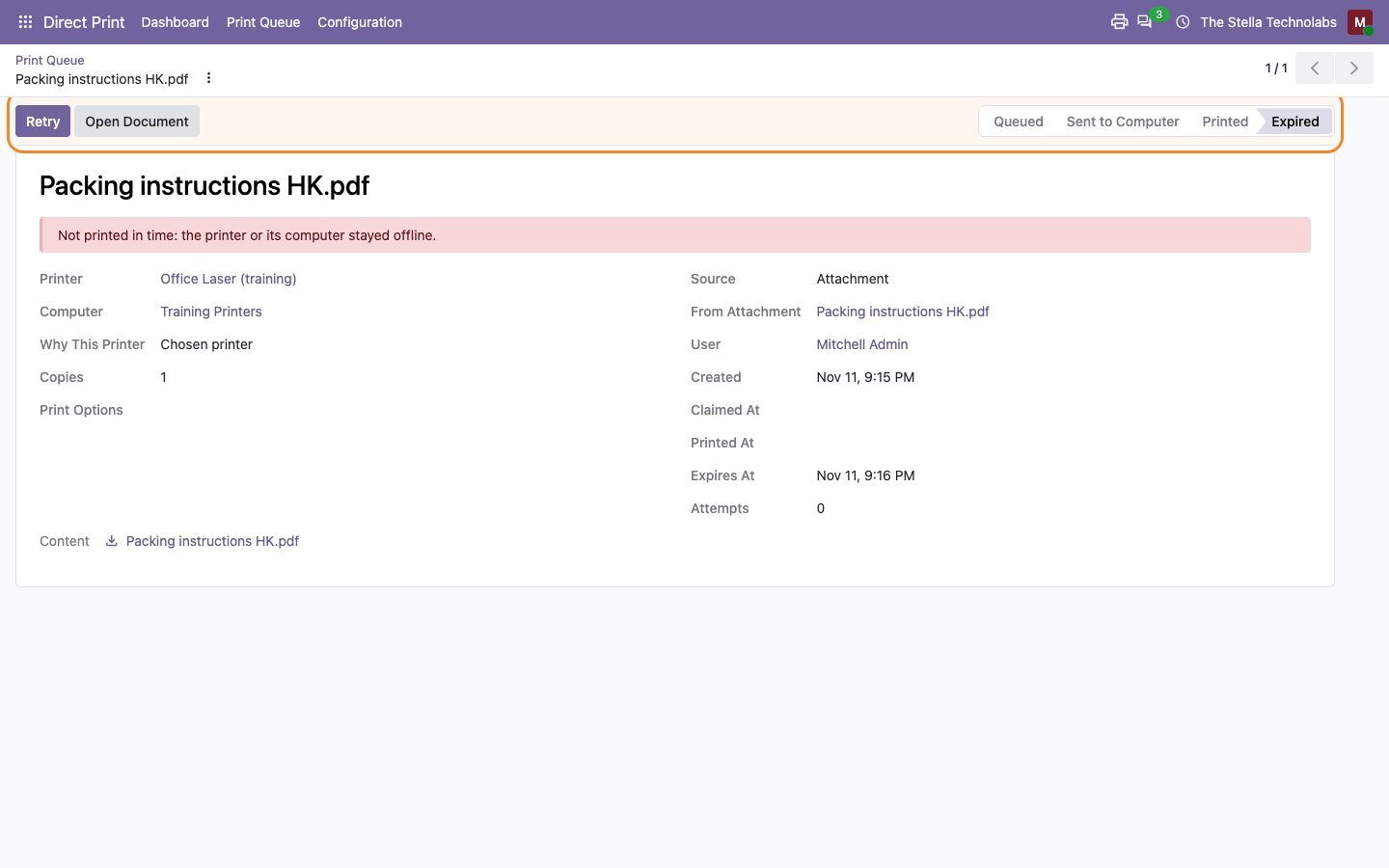
Every job shows its printer, the route that chose it and whether it printed, is waiting or failed. Retry or print again from the list.
Offline handled
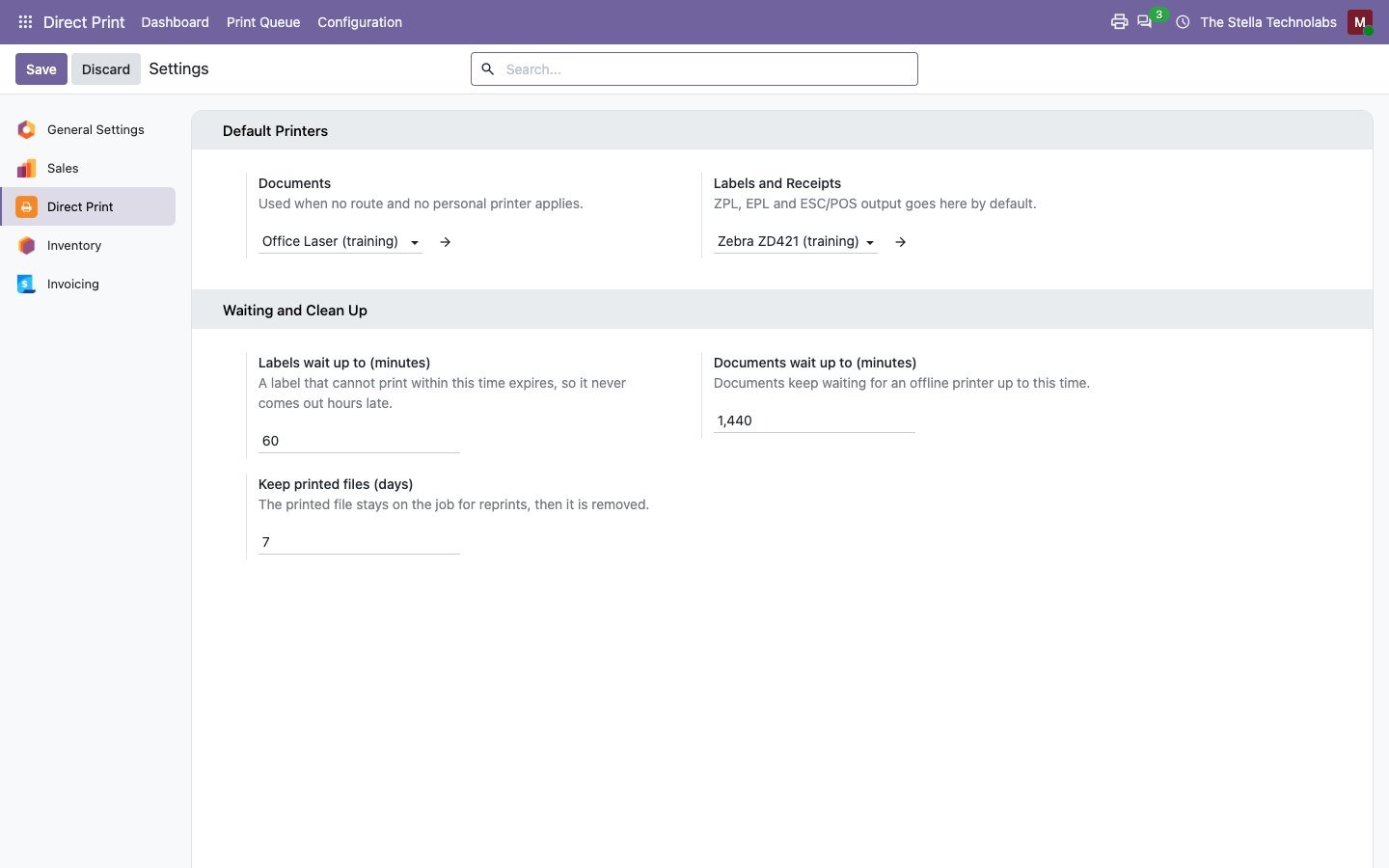
An offline computer shows within seconds. Jobs go to a fallback printer, wait, or expire so a label never comes out hours late.
The right printer, decided for you
The first rule that matches wins. Nothing applies means a normal download.
| Order | Rule | Example |
|---|---|---|
| 1 | Printer chosen on the Automation Rule | Invoices posted by the automation always go to the accounts office printer |
| 2 | Route for the report and the user | Delivery slips printed by the night shift go to the second floor printer |
| 3 | Route for the report and the operation type | Product labels of Receipts go to the label printer at the dock |
| 4 | Route for the report and the warehouse | Picking lists in one warehouse go to its office printer |
| 5 | Route for the report and the company | Invoices of a second company print in its own office |
| 6 | Printer of the operation type | Everything Delivery Orders print goes to the packing desk |
| 7 | The user's own printer | Each user picks theirs from the printer icon at the top of the screen |
| 8 | Company default printer | Anything else goes to the main office printer |
Printing in five minutes
Add the computer, run one command, pick the printers, print.
Add the computer
In Odoo, add the computer your printers are connected to and choose Windows, Mac or Linux.
Run one command
Paste the command Odoo shows into PowerShell or Terminal on that computer. The code in it works once, for thirty minutes.
Printers appear
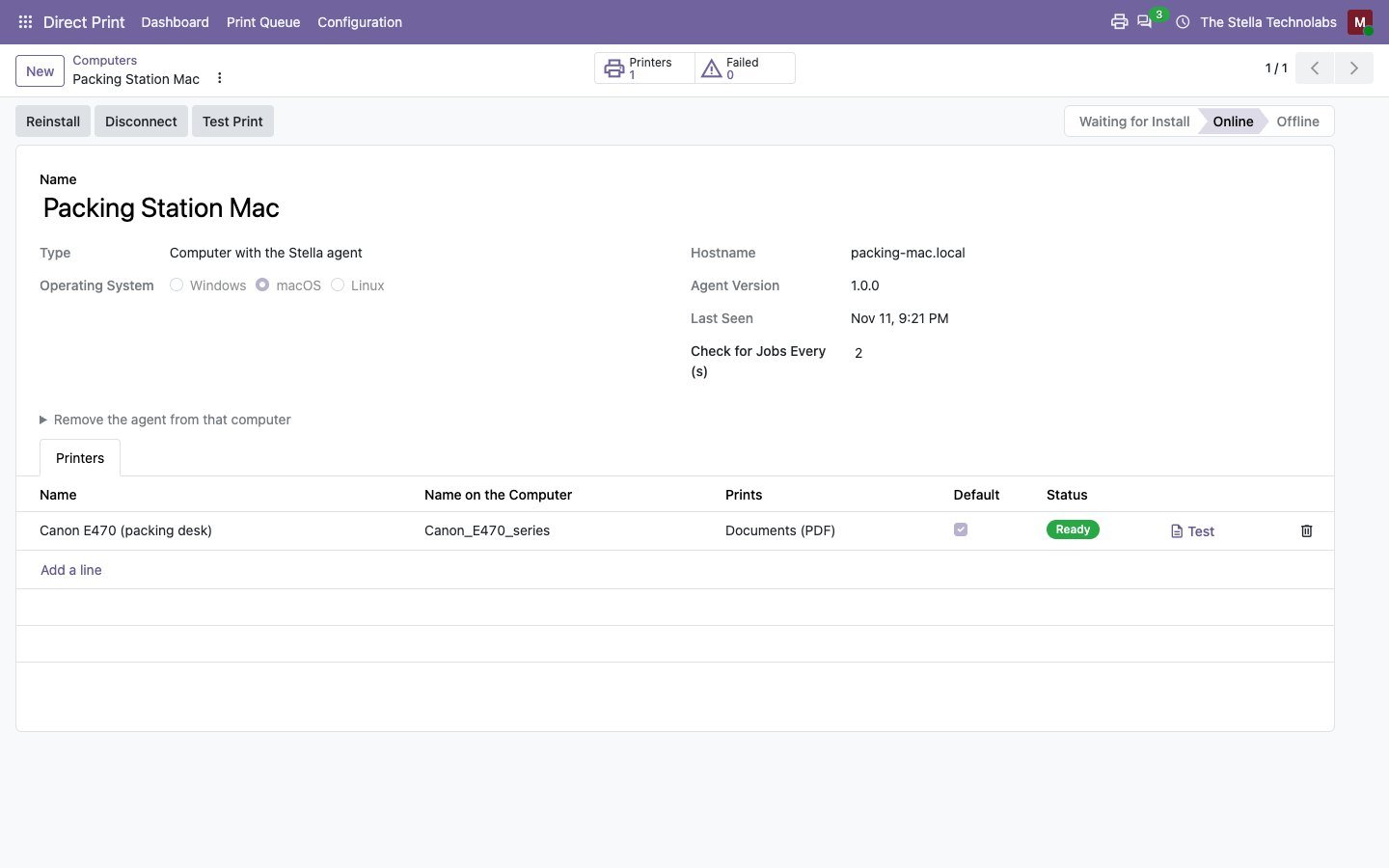
The agent reports the printers already set up on that computer, with their trays, paper sizes, two sided and colour options.
Pick the printers
Set a default document and label printer, and add routes for reports, users, warehouses or operation types if you need them.
Print
Click Print, validate a transfer or let an Automation Rule run. The document comes out of the right printer.
Printing never blocks the work in Odoo
What happens when a printer, a computer or a validation does not cooperate.
- A cancelled or failed validation prints nothing: jobs are released only when Odoo saves the transaction.
- A second click on Print within a few seconds is ignored.
- A switched off computer shows as offline; jobs go to the fallback printer or wait, and labels expire after an hour by default.
- A printer error marks the job failed with the printer's own message, the user gets a notice and Retry is one click.
- If Odoo is restarted, the agent waits and reconnects by itself.
- A lost or replaced computer is disconnected in Odoo with one click; its key stops working at once.
See it in Odoo
Taken on a test database with the Stella agent running on a Mac.
Built for teams that print every day
Wherever a document needs to come out of a particular printer, on time.
Warehouses and packing stations
Delivery slips and carrier labels print the moment a transfer is validated, at the right desk.
Label printing on receipt
Product and lot labels come out of the label printer at the dock as goods are received.
Web shops shipping every day
Shipping labels from any carrier connector print without opening a single PDF.
Offices that print invoices
Invoices and orders print automatically with an Automation Rule, on the office printer.
Odoo in the cloud
Odoo.sh or any hosted Odoo prints to printers in your building through the agent, with no VPN.
Several companies or sites
Routes per company, warehouse and operation type keep every site on its own printers.
Tested on the standard, unmodified editions of Odoo Community and Enterprise. It depends on the standard Inventory module; carrier labels print when a standard Shipping connector is also installed. If your reports, print menus or inventory operations have been changed by another developer, contact us before buying. Runs on Odoo.sh and your own server; Odoo Online does not allow custom modules. The Stella agent needs Windows 10 or 11 with PowerShell, macOS, or Linux with CUPS.
Stop downloading. Start printing.
Install Direct Print, run one command on the computer next to your printers, and print from Odoo the same day.
Straight answers before you buy
Is there a subscription or a fee per print?
No. The module talks to the agent on your own computer, or to the printer itself. There is no print service in between to pay.
Do I need an IoT Box or Odoo Enterprise?
No. It works on Odoo Community and Enterprise, without an IoT Box.
Does it work with Odoo.sh or Odoo in the cloud?
Yes. The agent connects out to your Odoo over HTTPS, so Odoo can be anywhere on the internet. Odoo Online does not allow custom modules.
Which printers work?
Any printer the computer can already print to: office, inkjet, label and receipt printers. Labels in ZPL go to Zebra and compatible printers as raw data.
Does every computer need the agent?
No. One computer that can reach all the printers is enough, for example a small PC or a Raspberry Pi in the warehouse. Network printers need no agent when Odoo runs on your own network.
Do my documents go through anyone else's servers?
No. The agent downloads each document from your Odoo and nowhere else, and printed files are removed from the queue after seven days by default.
Can users still download a PDF?
Yes. Every print notice has Download instead, and each user can switch to downloading from the printer icon.
What if the printer is off?
The job waits, goes to the fallback printer you chose, or expires; you see it in the queue and can retry it.