Run the business in Odoo. Keep the books in QuickBooks Online.
Invoices, bills, payments, cost of goods sold and point of sale sessions reach QuickBooks exactly as Odoo posted them, with the PDF attached. Nothing is sent unless it ties to the cent.
Runs on Odoo Community and Enterprise, on Odoo.sh or your own server.
- Customer invoiceSent
- PaymentSent
- Cost of goods sold journalSent
- Point of sale sessionWaiting
Odoo runs the business. QuickBooks keeps the ledger.
Your team and your accountant each keep the system they know.
Your team stays in Odoo
Sales, purchasing, stock, manufacturing and the point of sale keep running in Odoo, exactly the way they do today.
Your accountant stays in QuickBooks
Every invoice, bill, credit and payment arrives with the right accounts, tax codes and PDF, plus the journals QuickBooks never sees on its own.
Both show the same numbers
Nothing is sent unless it ties to the cent, and every night the open balances are compared with QuickBooks.
Everything the books need, sent from Odoo
What reaches QuickBooks, and how it lands there
Invoices, bills and credits
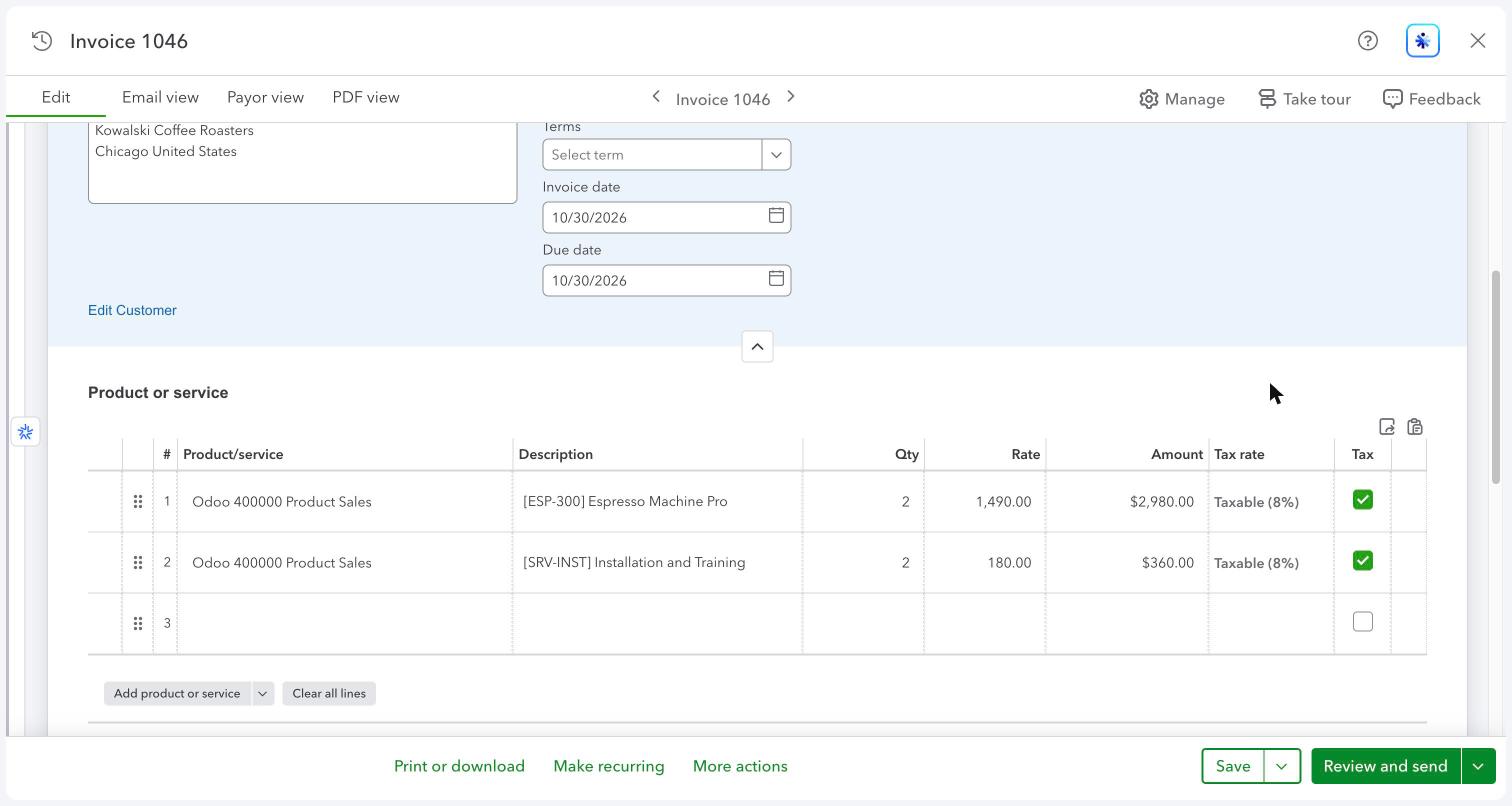
Customer invoices, vendor bills, credit memos and vendor credits go to QuickBooks when they are posted, in batches of up to 30 per call, with your accounts and tax codes.
Your income accounts kept
QuickBooks takes the income account of an invoice line from its item. The connector creates one item per Odoo income account, so every line lands on the same account as in Odoo.
Payments and credits
Full and partial payments, one payment across several invoices, bill payments, and credit memos or vendor credits applied to open invoices and bills.
Changes come back
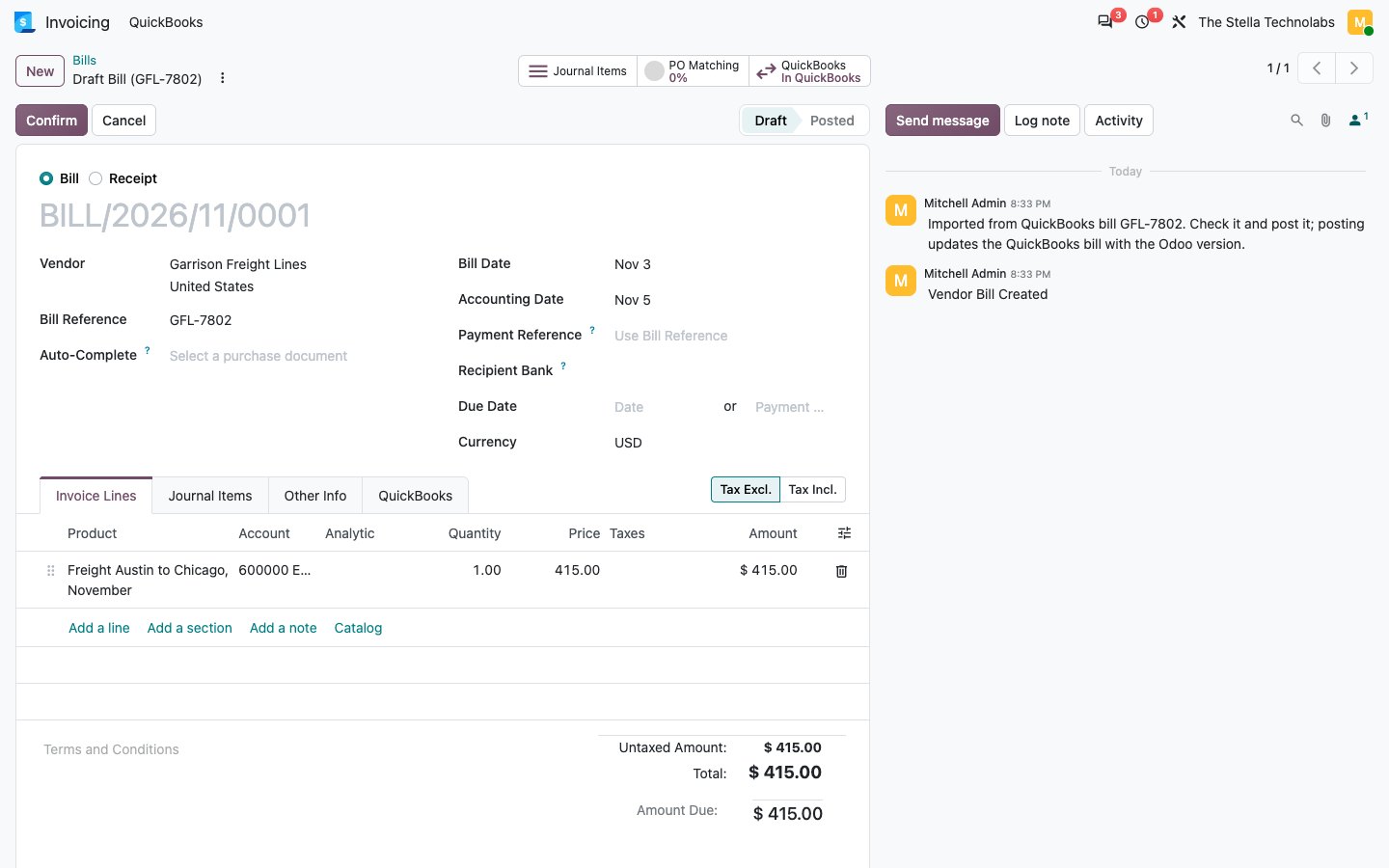
Payments entered in QuickBooks are recorded and reconciled in Odoo. Documents voided or deleted in QuickBooks are flagged for review. Bills entered in QuickBooks can come in as draft bills.
Cost of goods sold and journals
Cost of goods sold from invoices, plus inventory valuation, manufacturing, depreciation or payroll journals, sent as daily or monthly QuickBooks journal entries.
Point of sale sessions
Each closed session becomes one QuickBooks invoice with one payment per payment method, so every payment matches the deposit in the bank.
Classes and locations
Pick one Odoo analytic plan for QuickBooks classes and one for locations. Values missing in QuickBooks are created for you.
PDF attached
The invoice PDF, or the PDF attached to a vendor bill, is uploaded to the QuickBooks document, ready for your accountant and auditor.
Sales tax, VAT and GST
US companies with or without Automated Sales Tax, and per line tax codes for the UK, Canada, Australia, India and France, all in one module.
Closing date respected
When the QuickBooks books are closed, a backdated document either stops with a clear message or moves to the first open day. You choose.
Ties to the cent
A document that would total differently in QuickBooks waits in the queue instead. Every night the open balances of invoices and bills are compared with QuickBooks.
Queue, retry and Mock mode
Every call is logged with the request and the answer. Errors can be retried or skipped. Mock mode works without QuickBooks for training and staging databases.
What moves, and when
Every record that travels between Odoo and QuickBooks
| Odoo | QuickBooks | When |
|---|---|---|
| Customer invoice | Invoice | When posted |
| Customer credit note | Credit memo | When posted |
| Vendor bill | Bill | When posted |
| Vendor refund | Vendor credit | When posted |
| Customer or vendor | Customer or vendor | With its first document, then whenever it changes |
| Payment | Payment or bill payment | When registered or reconciled |
| Credit note matched with an invoice | Credit applied to the invoice | When reconciled |
| Cancelled or deleted document | Voided (invoices) or deleted (other documents) | When cancelled or deleted in Odoo |
| Cost of goods sold and chosen journals | Journal entry | Daily or monthly |
| Point of sale session | Invoice plus one payment per method | When the session is closed |
| Invoice or bill PDF | Attachment | Right after the document is sent |
| QuickBooks | Odoo | When |
|---|---|---|
| Payment or bill payment entered in QuickBooks | Payment, reconciled with the invoice or bill | Within a minute with webhooks, or at the hourly check |
| Payment deleted or voided in QuickBooks | Cancelled if it came from QuickBooks, flagged for review if it was sent from Odoo | Within a minute, or at the hourly check |
| Invoice or bill voided or deleted | Flagged with an activity for review | Within a minute, or at the hourly check |
| Bill entered in QuickBooks | Draft vendor bill (optional) | Within a minute, or at the hourly check |
| Accounts, tax codes, classes, locations, closing date | Reference data for mapping and checks | Daily, or on demand |
Odoo stays the system of record. Apart from payments that came from QuickBooks, nothing in Odoo is cancelled because of a change made in QuickBooks; it is flagged for you to review instead.
From posted in Odoo to settled in QuickBooks
Connect your QuickBooks company
Create a free app in the Intuit developer portal, paste its keys into Odoo and sign in to QuickBooks. The connector reads your accounts, tax codes, classes, locations, plan and closing date.
Map once, with suggestions
Suggest Mappings pairs Odoo accounts with QuickBooks accounts by code or name, taxes with tax codes by rate, and bank journals with bank accounts. You check the result and fill any gaps.
Post in Odoo as usual
Invoices, bills and credits are checked to the cent and sent in batches as they are posted. Customers and vendors are created or linked with their first document.
Payments move both ways
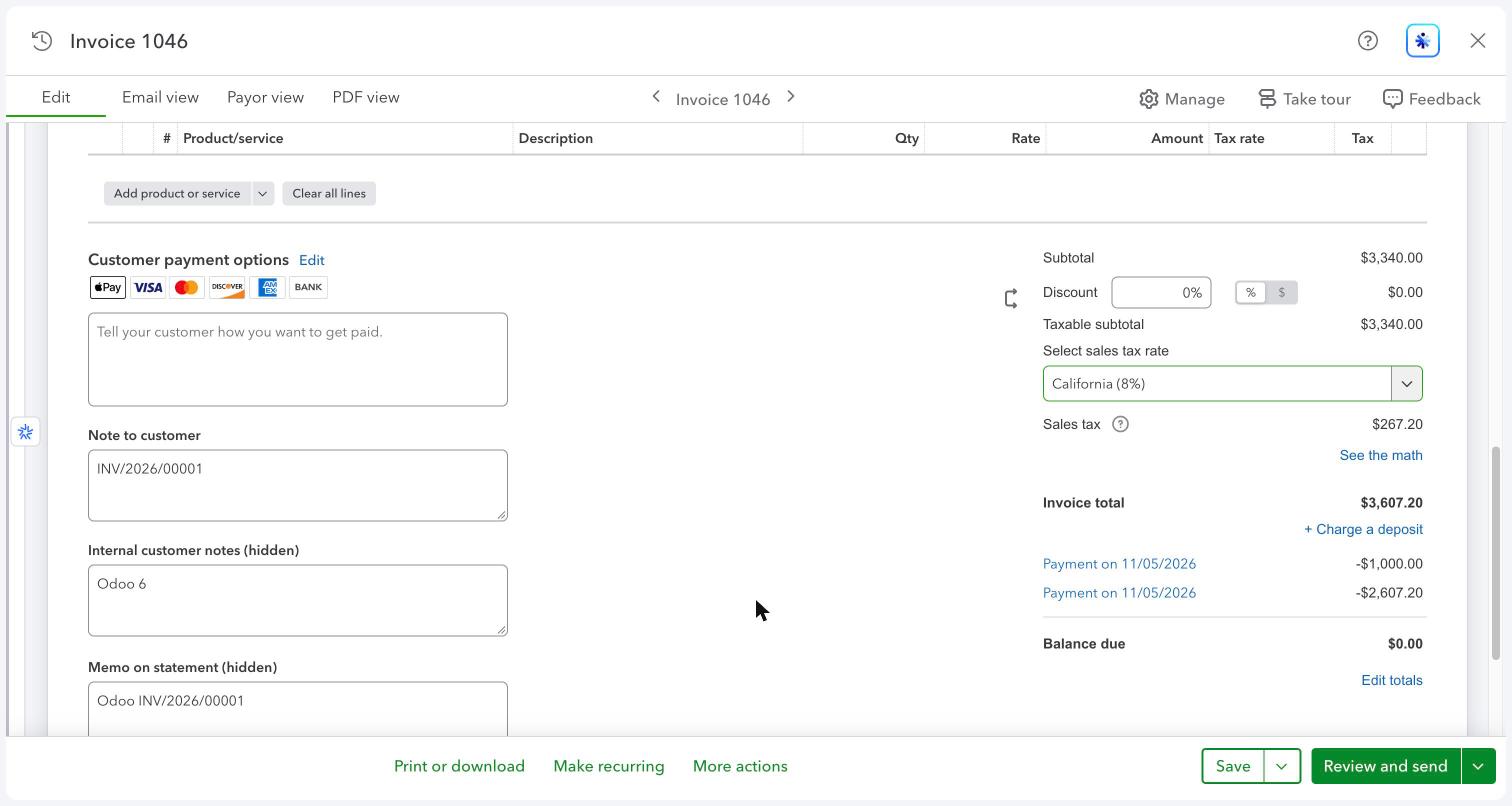
Payments registered in Odoo reach QuickBooks, including one payment across several invoices. Payments entered in QuickBooks come back and reconcile the invoice or bill.
Journals and sessions follow
Cost of goods sold and the journals you choose go to QuickBooks as daily or monthly journal entries. Each closed point of sale session arrives as one invoice with a payment per method.
A balance check every night
The open balances of invoices and bills are compared with QuickBooks and any difference is listed. The dashboard of each company shows what is waiting, sent or in error.
Built in safeguards
What happens when something does not line up
- A document that would total differently in QuickBooks is not sent. It waits in the queue with both totals, so you can fix the tax or rounding.
- If QuickBooks totals a sent document differently, the document is marked Totals differ with both amounts instead of being reported as sent.
- A missing account, tax or bank journal mapping holds the document with a message that names exactly what to map.
- When a customer or vendor name already exists in QuickBooks, the existing record is linked, or a new one is created with a short suffix.
- When a linked customer, vendor or item was deleted in QuickBooks, the link is dropped and the record is created again automatically.
- When the books are closed for that date, the connector stops and reports, or moves the document to the first open day, as you chose.
- When QuickBooks is busy, the request waits and retries with growing delays, and request IDs make sure nothing is sent twice.
- When someone edits the same QuickBooks record at the same time, the connector reads the latest version and tries again.
Sales tax, VAT and GST, the way QuickBooks keeps them
One module for the three ways QuickBooks handles tax
| US with Automated Sales Tax | US without Automated Sales Tax | UK, Canada, Australia, India, France | |
|---|---|---|---|
| Each line carries | Taxable or not taxable | Taxable or not taxable | Its own QuickBooks tax code |
| How the Odoo tax is kept | The Odoo tax total overrides the QuickBooks calculation | The mapped sales tax code plus the Odoo tax total | Each tax rate line with the exact Odoo amount |
| Mapping you set | None | Odoo tax to QuickBooks sales tax code, suggested by rate | Odoo tax to QuickBooks tax code, suggested by rate |
| Vendor bills | Tax added as an expense line | Tax added as an expense line | Tax code on every line |
Tax codes with two rates are split by rate, for example GST and PST in British Columbia.
A closer look
The Odoo side of the connector, then the result inside QuickBooks
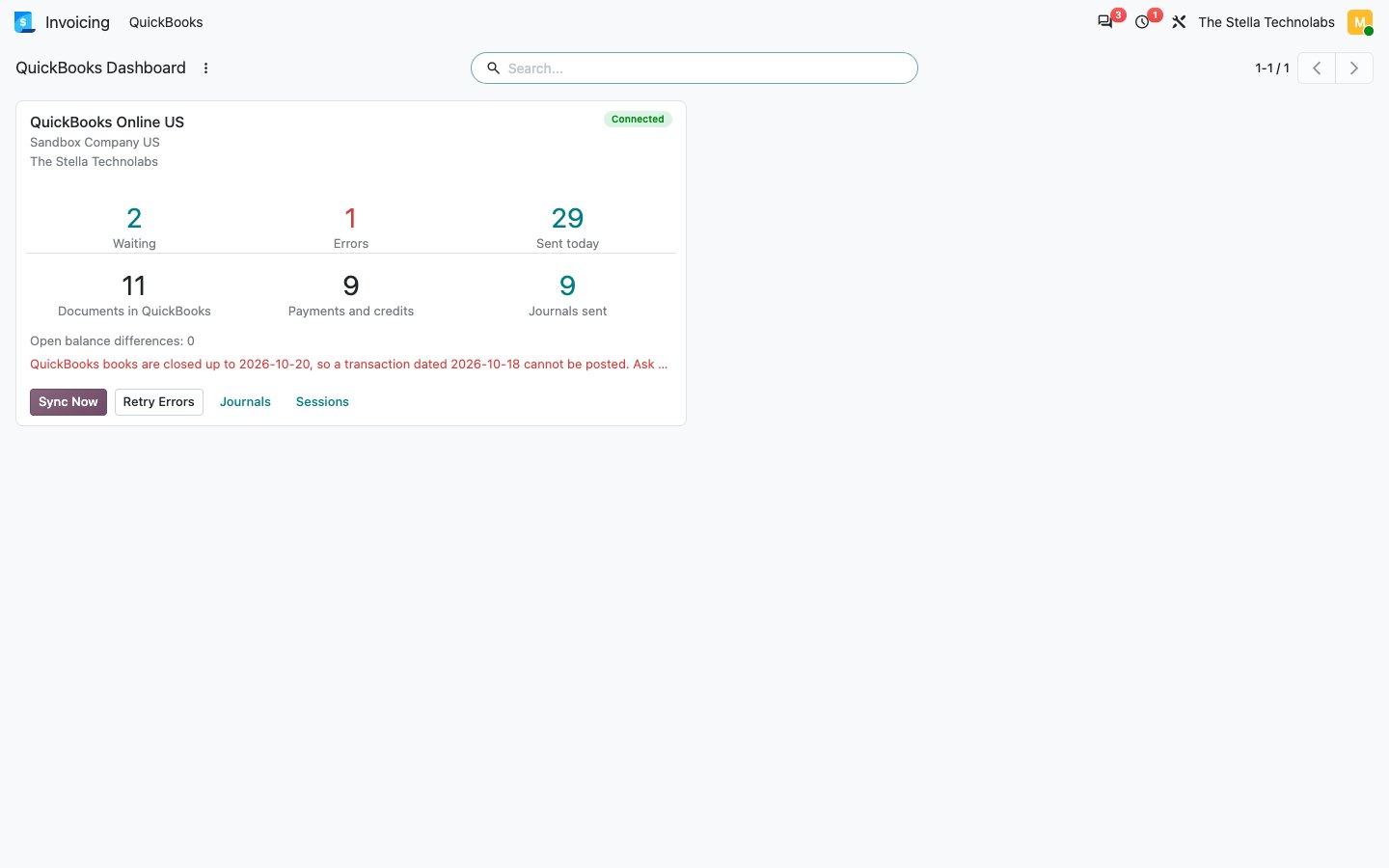
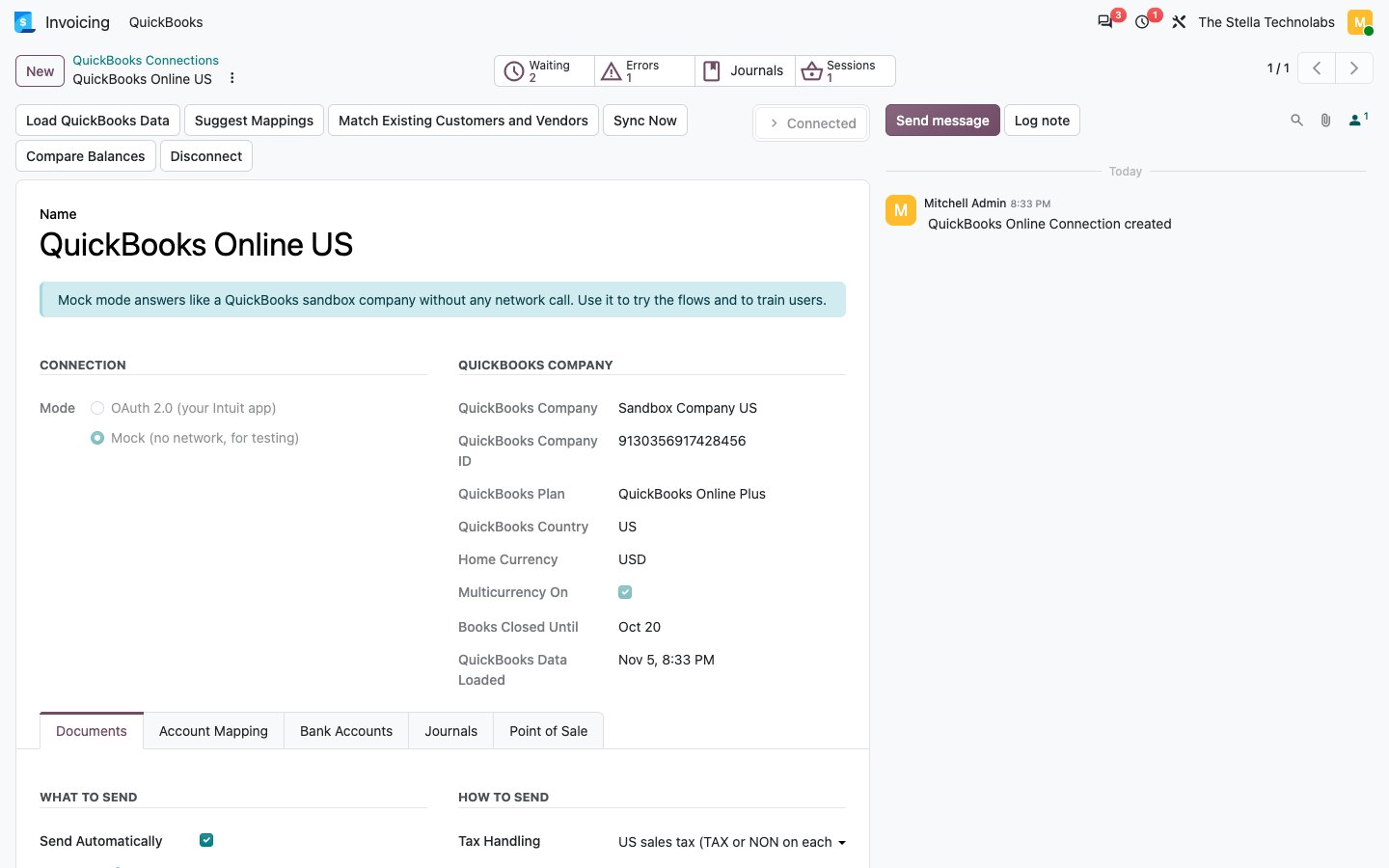
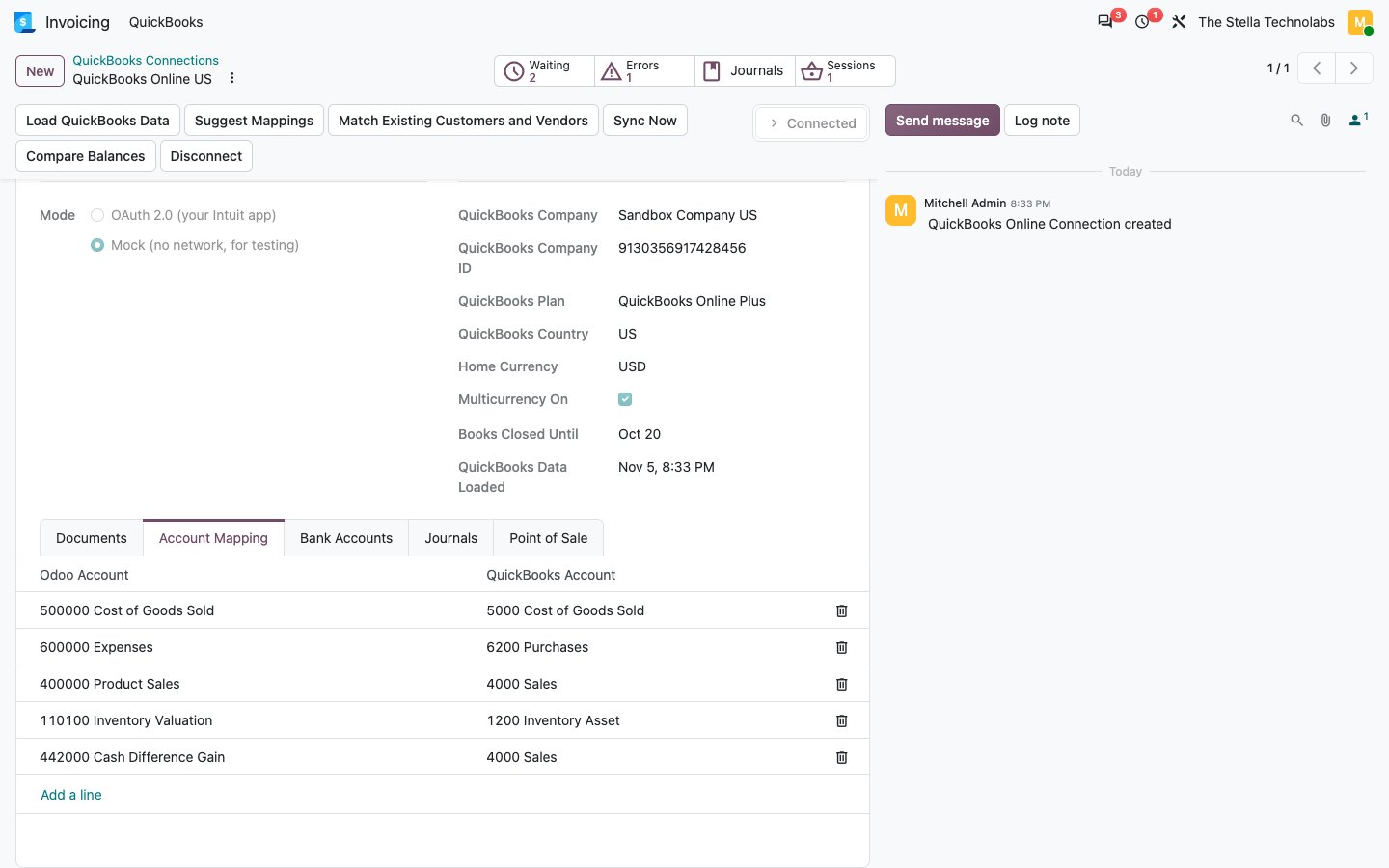
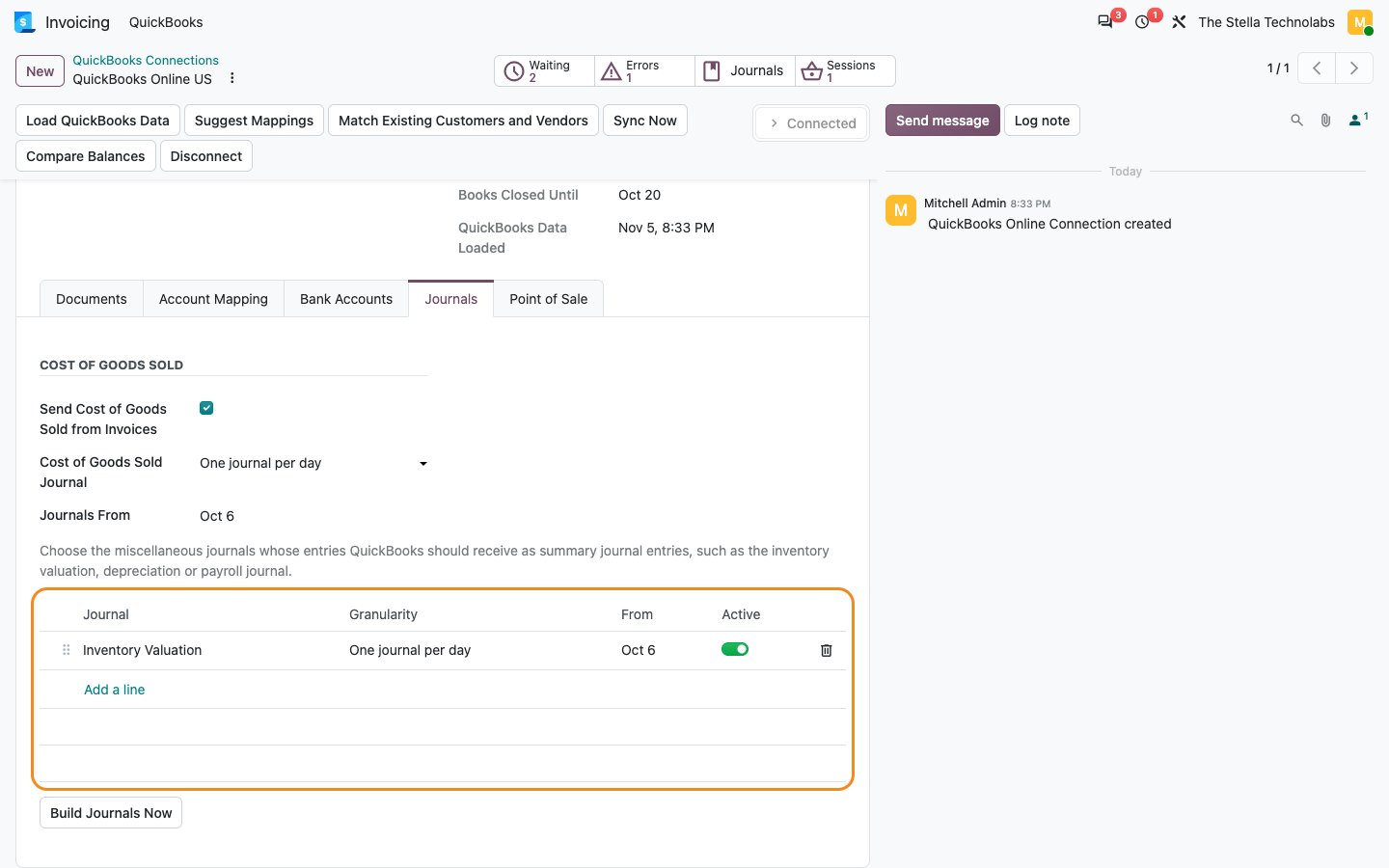
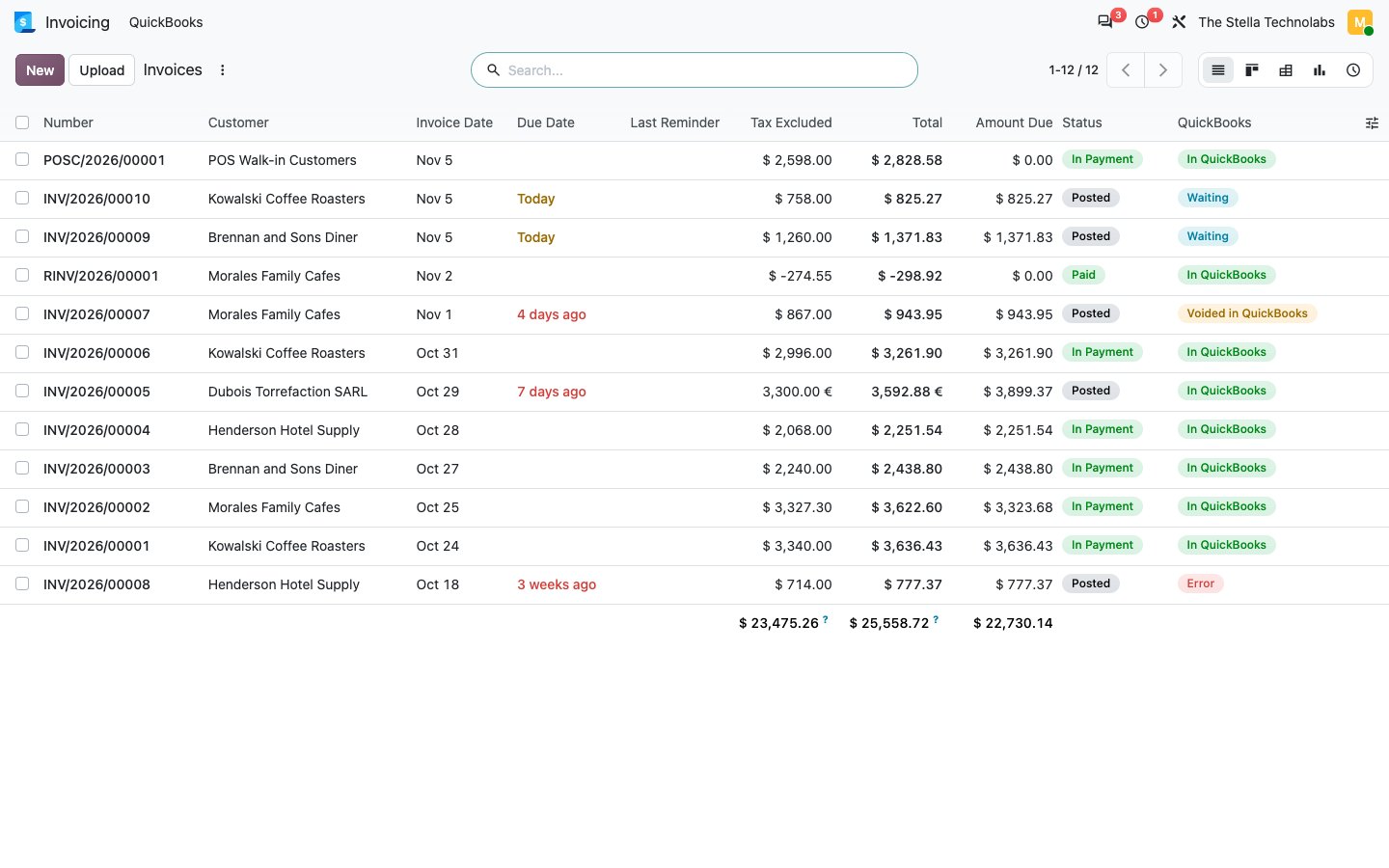
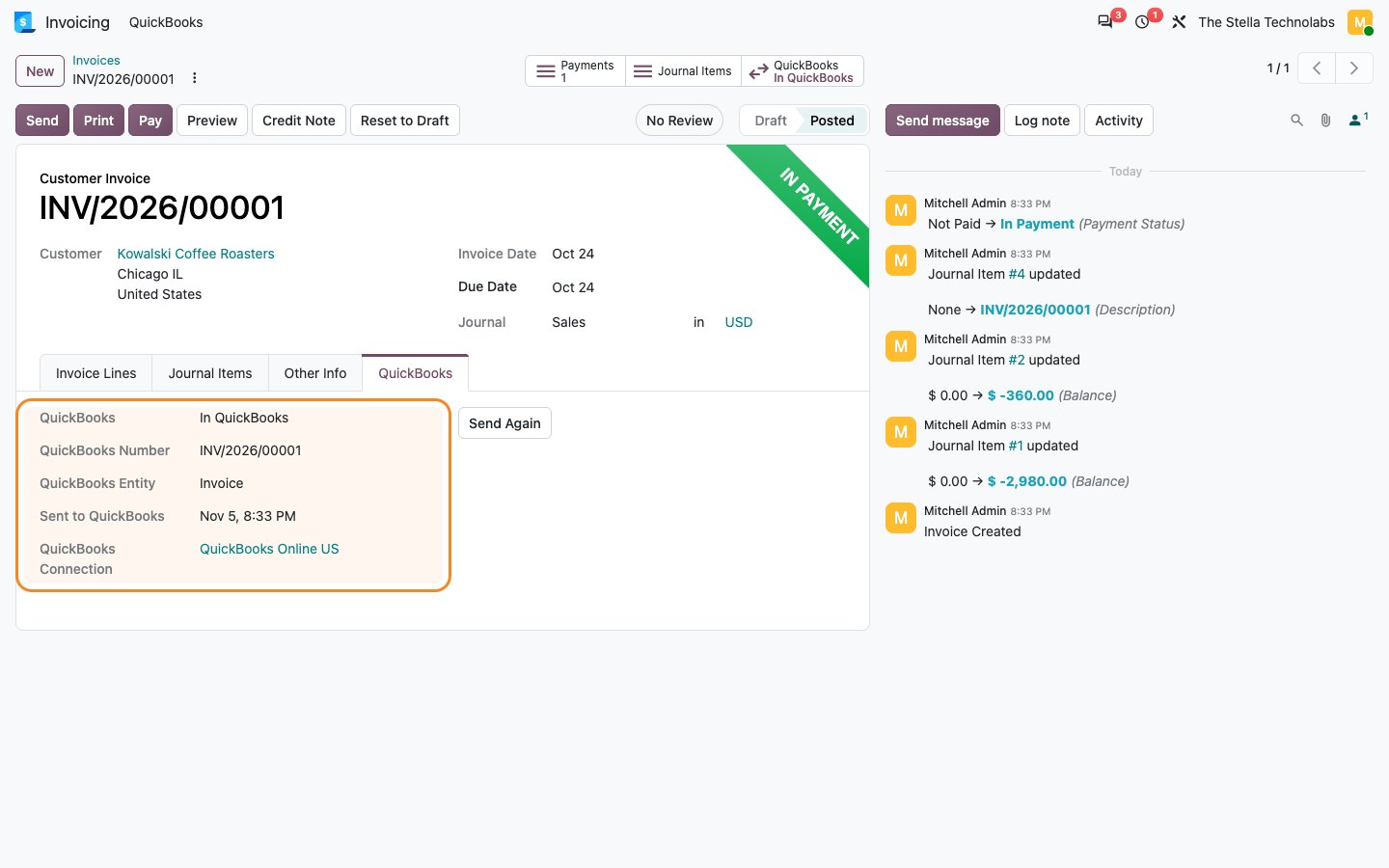
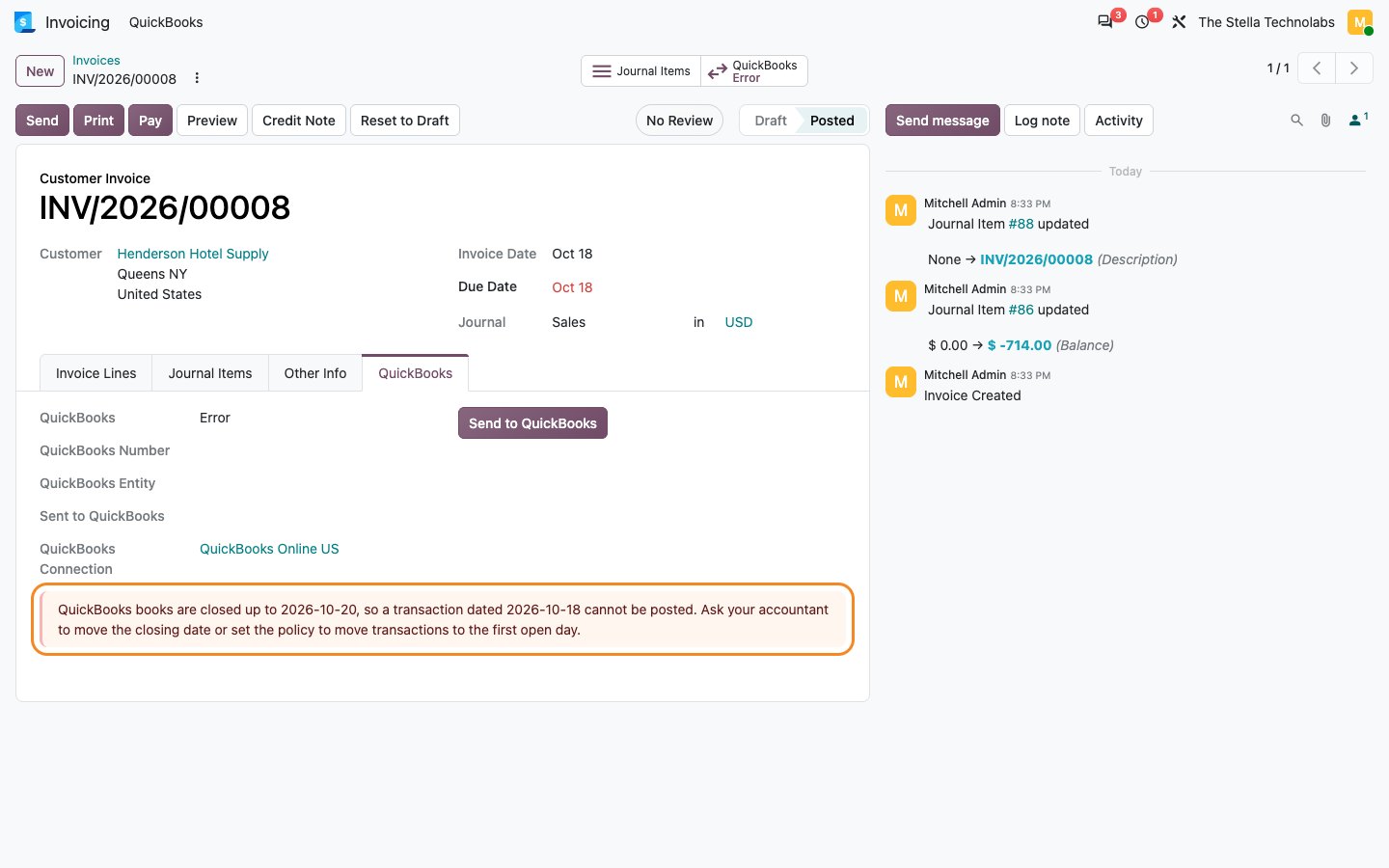
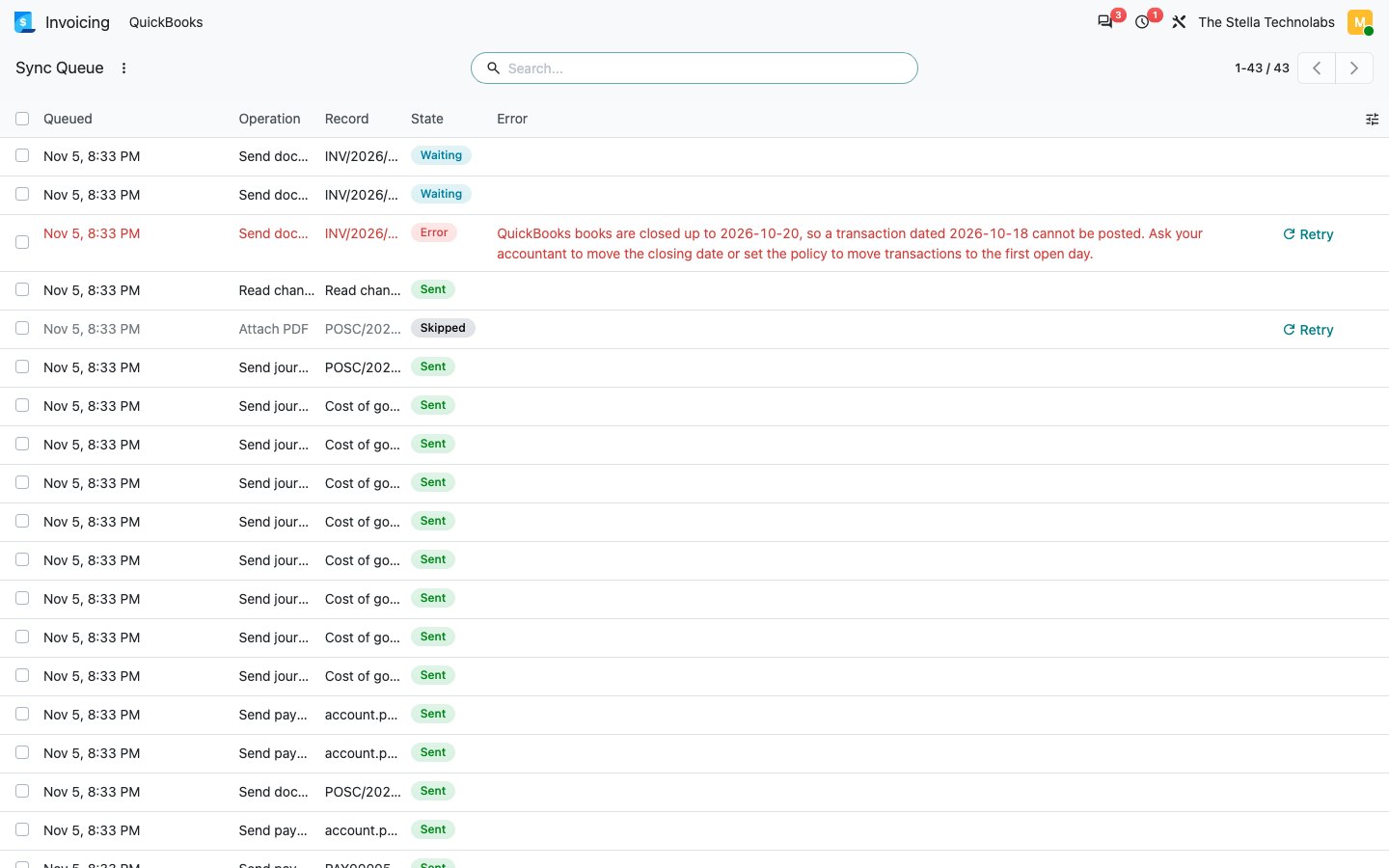
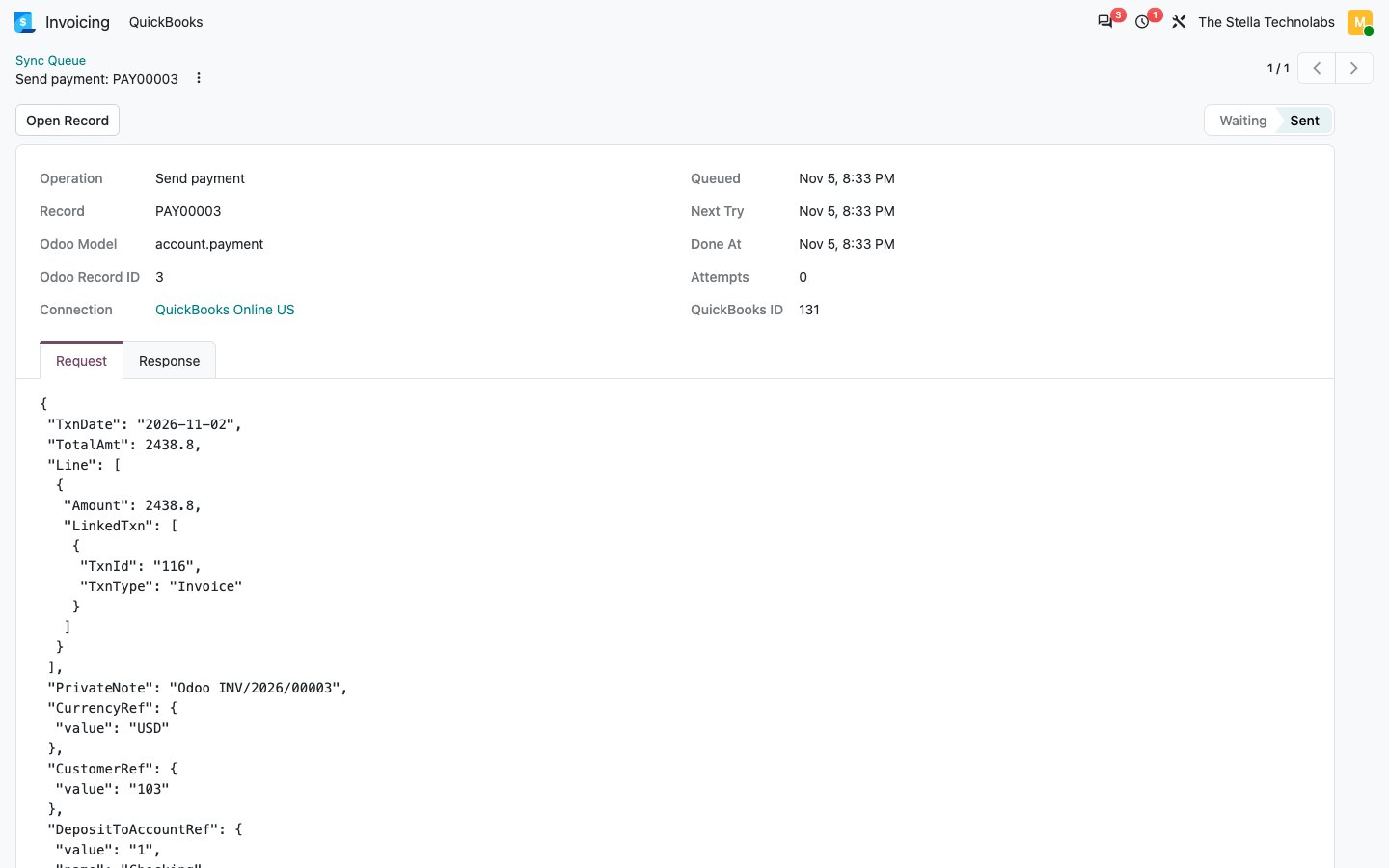
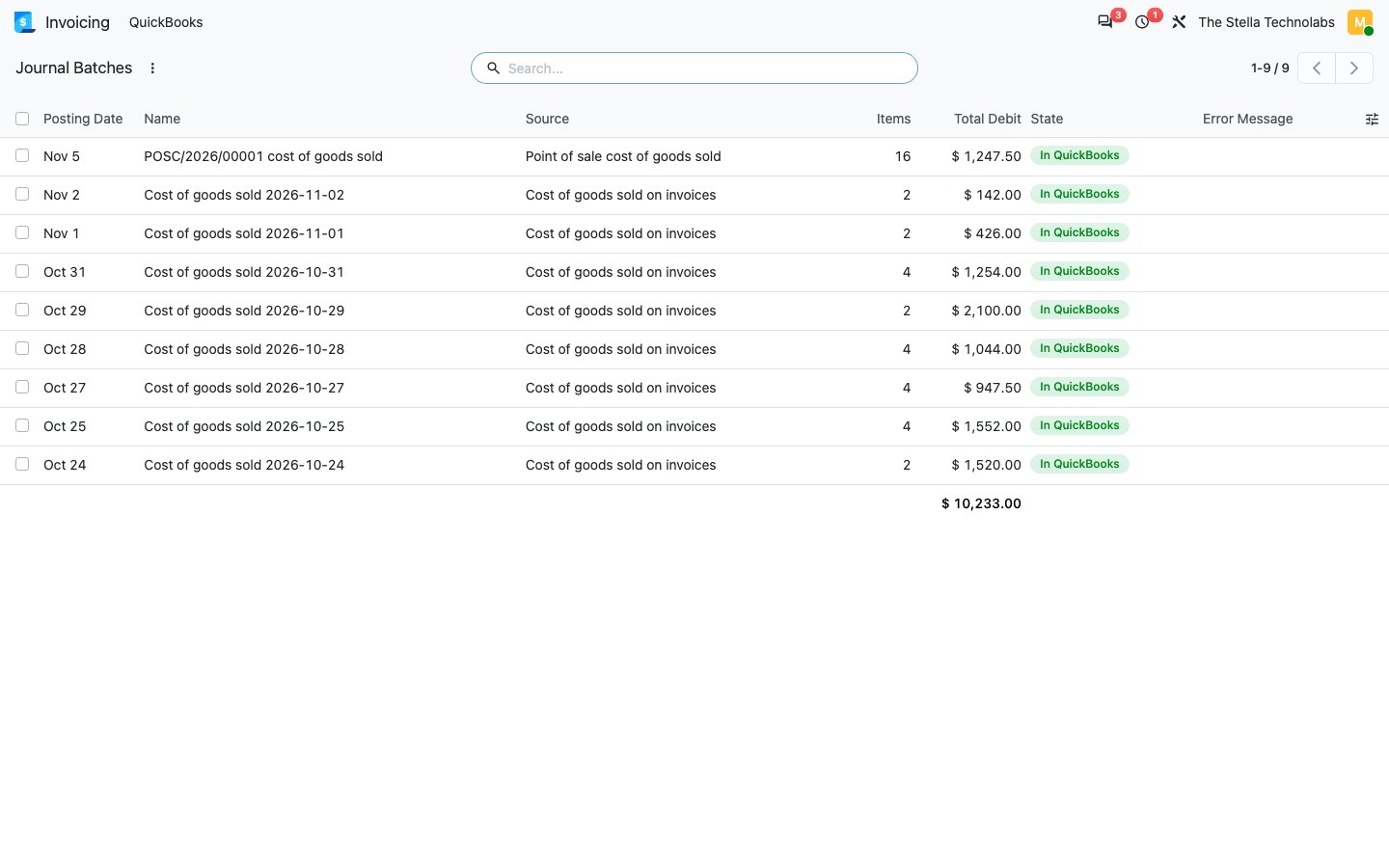
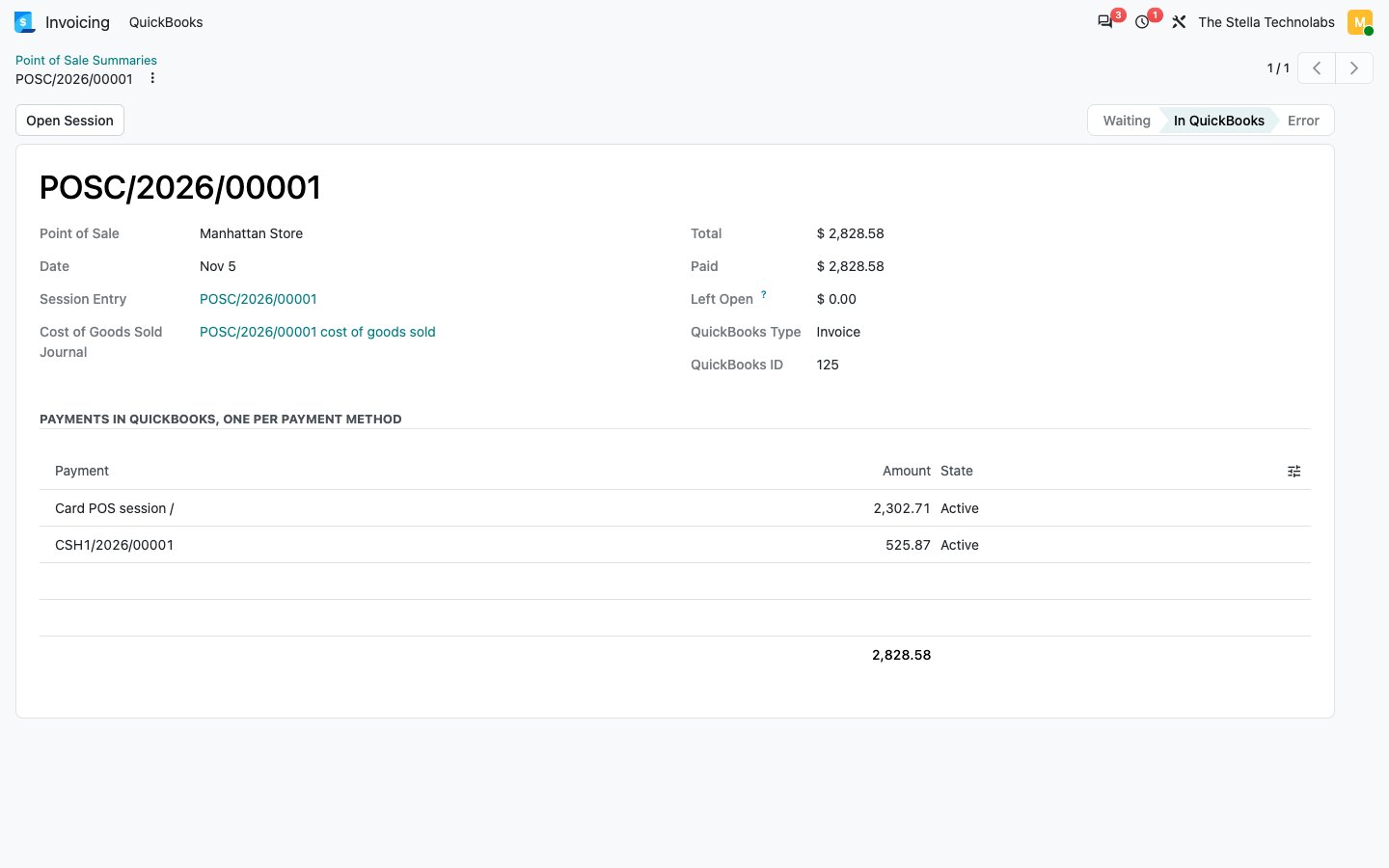
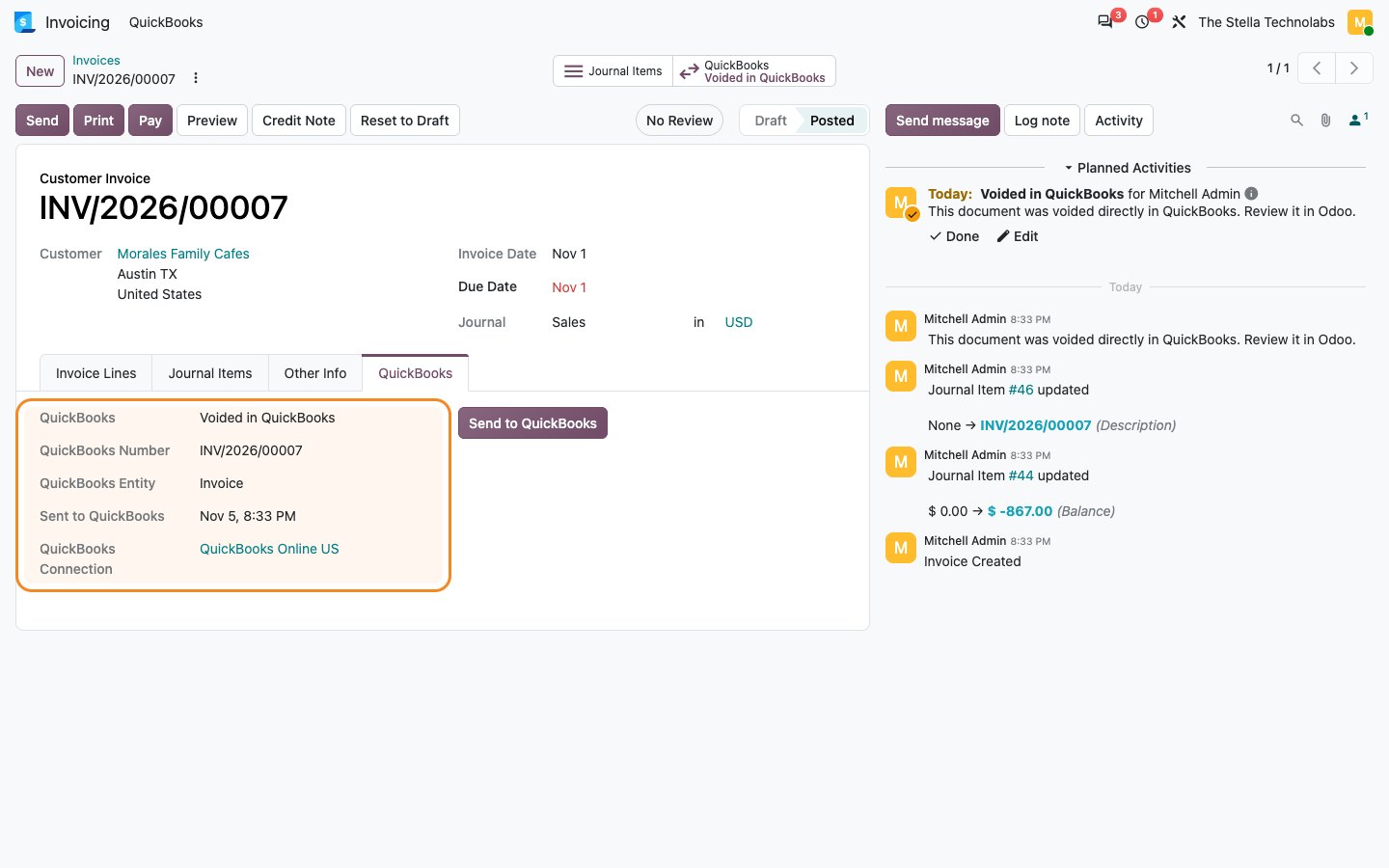
Inside a real QuickBooks Online sandbox company, after the sync
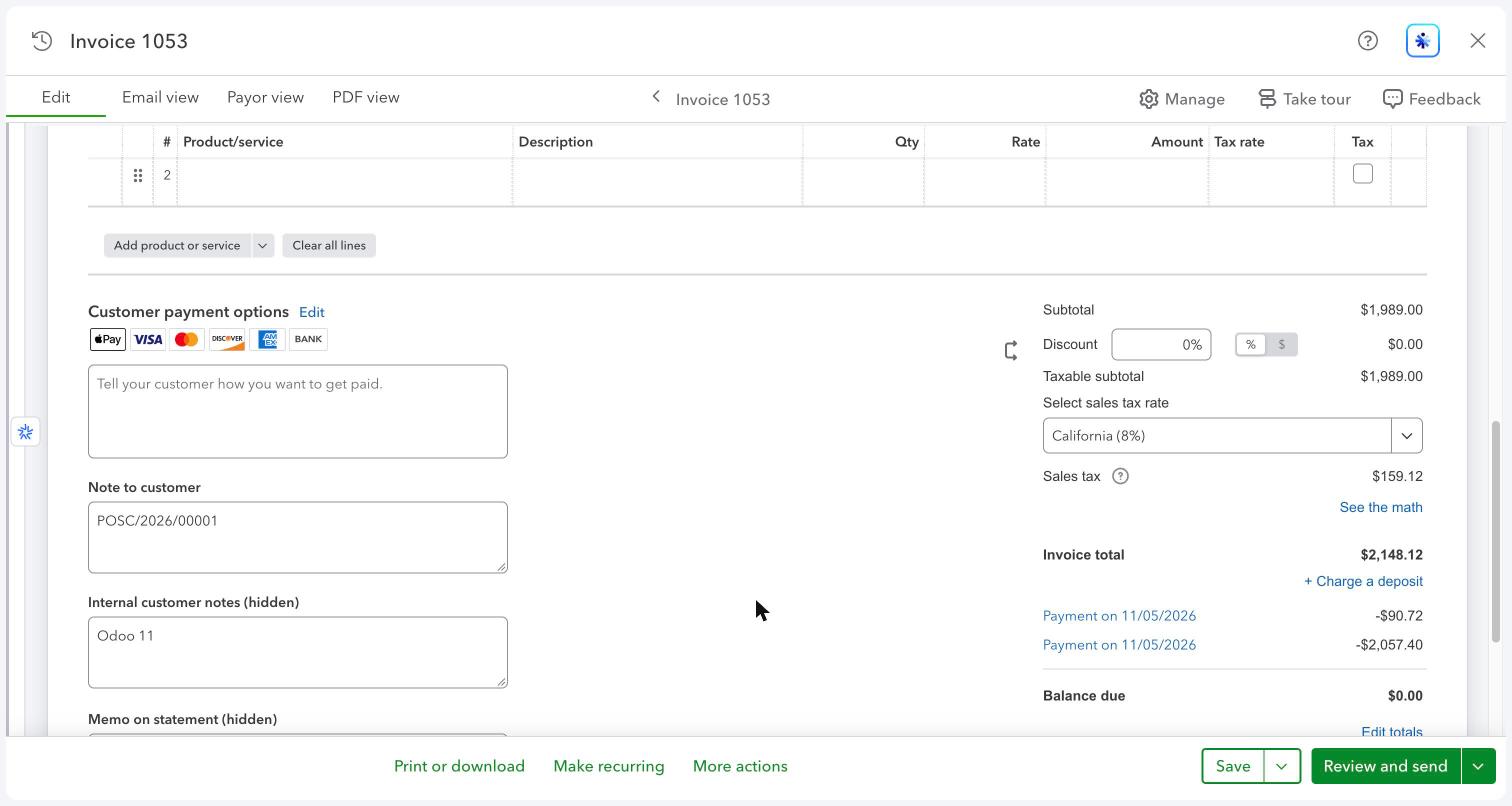
Built for teams whose accountant works in QuickBooks
Distributors and wholesalers
Stock and sales run in Odoo. Cost of goods sold reaches QuickBooks as journal entries, so the gross margin in the books matches Odoo.
Shops with Odoo Point of Sale
Each closed session arrives as one invoice with a payment per method, so every payment matches the bank deposit.
Manufacturers
Manufacturing and inventory valuation journals go to QuickBooks daily or monthly, grouped by account and class.
Bookkeepers and accounting firms
Your client runs Odoo and you keep working in QuickBooks, with the PDF on every document and your closing date respected.
Groups with several companies
Each Odoo company connects to its own QuickBooks company, with multicurrency where QuickBooks has it turned on.
Teams moving to Odoo step by step
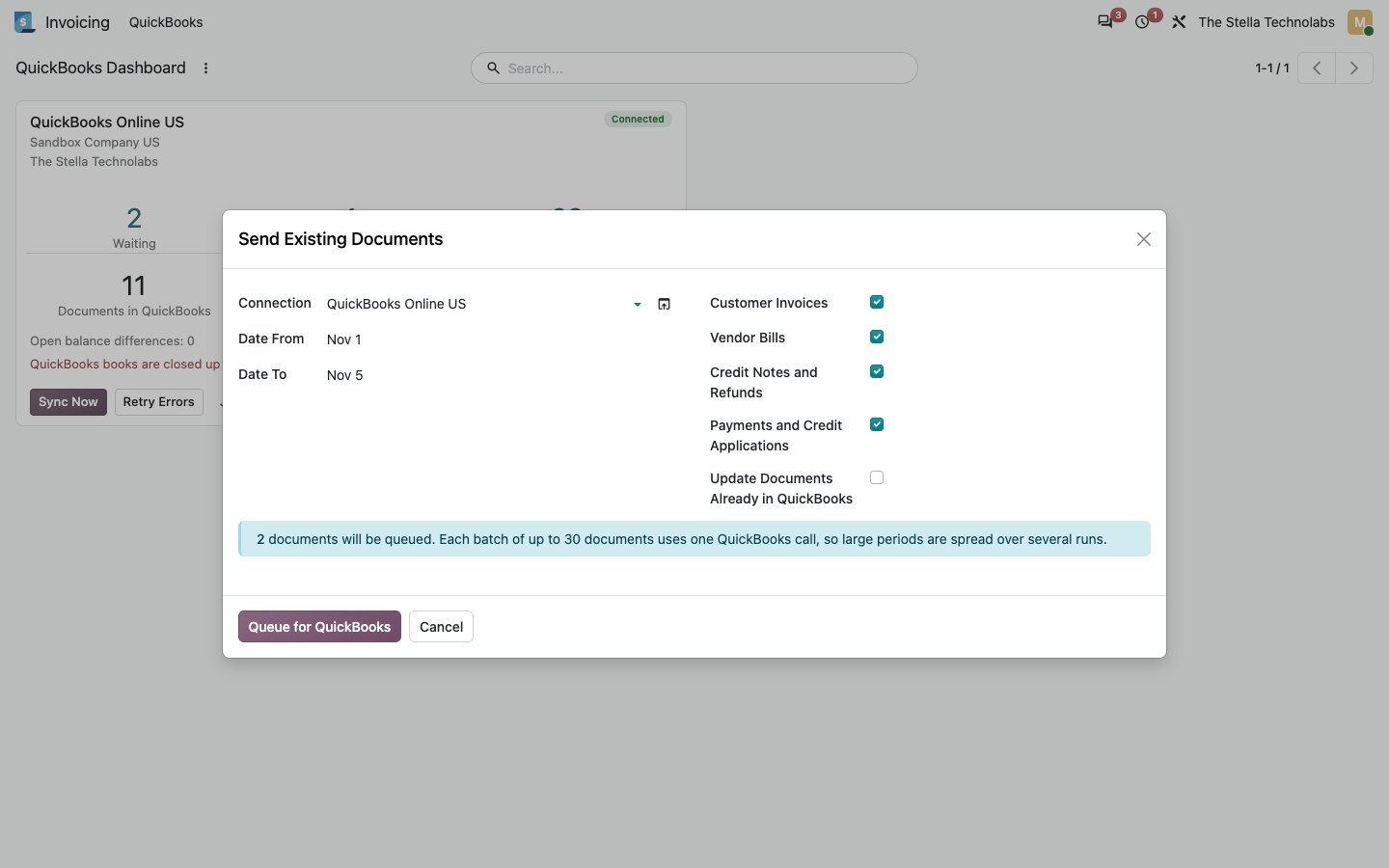
Move operations to Odoo first and keep QuickBooks as the ledger. Older Odoo documents can be sent for any period you choose.
This connector extends standard Odoo Invoicing and Accounting, and Point of Sale when it is installed. It does not replace or debrand any native feature. It works with the standard, unmodified editions of Odoo Community and Enterprise. If your accounting has been changed by another developer, for example a custom invoice flow, a custom tax setup or another accounting connector, please contact us before purchasing.
You need a QuickBooks Online subscription and a free Intuit developer app. QuickBooks and Intuit are trademarks of Intuit Inc. This connector is made by The Stella Technolabs and is not made or endorsed by Intuit.
Ready to connect Odoo and QuickBooks Online?
Get the connector on the Odoo Apps Store, or talk to us first about mapping your accounts and taxes.
Questions, answered
What do I need on the QuickBooks side?
A QuickBooks Online subscription and a free app in the Intuit developer portal, which gives you the keys to paste into Odoo. To try it first, use a free Intuit sandbox company, or Mock mode, which needs no QuickBooks at all.
Does it work with QuickBooks Desktop?
No. It connects to QuickBooks Online only.
Which QuickBooks plans are supported?
Simple Start, Essentials, Plus and Advanced. Classes, locations and inventory items need Plus or Advanced, and the connector reads your plan and only uses what it allows.
Does it bring my QuickBooks history into Odoo?
No. It sends Odoo activity to QuickBooks from the start date you choose. Older Odoo documents can be sent with Send Existing Documents, and bills entered in QuickBooks can be imported going forward.
What about US sales tax?
Both setups work. With Automated Sales Tax, Odoo marks lines taxable and sends its tax total. Without it, map each Odoo tax to your QuickBooks sales tax code once and the tax arrives to the cent.
Can I use another currency?
Yes, when multicurrency is on in QuickBooks. A customer is created per currency, as QuickBooks requires, and the Odoo exchange rate is sent.
Do I need webhooks?
No. They make changes arrive within a minute. Without them, the hourly check picks up payments, voids and bills made in QuickBooks.
Does it work on Odoo Online?
No. Odoo Online does not allow custom modules. The connector runs on Odoo.sh and on your own server, with Odoo Community or Enterprise.
Is my data safe?
It uses Intuit OAuth with the accounting scope only. Only QuickBooks managers in Odoo can see the client secret, and tokens are stored where only administrators can read them.